Investment Academy20 Years
Training Guide

Training Guide — Essential Skills in Tourist Guiding

A step-by-step guide covering the whole training journey that follows your registration in the program — from Taqat and the enrichment course, through the medical checkup, first aid and the police-clearance certificate, to issuing your tourist-guide license, illustrated with screenshots for every stage.

In partnership with the Ministry of Tourism, the Human Resources Development Fund (HRDF), and NOCN.

Journey stages

Click any stage to jump straight to it
Stage 1

Taqat Registration

Getting your HRDF support credited

1

Registering on “Taqat” (HRDF platform)

  • Per the Human Resources Development Fund (HRDF) rules, after booking your course slot you must also register for the same course on the Taqat platform (taqat.sa) so the support is credited.
  • Sign in to Taqat, then from the top menu choose Our programs → Professional certificates → Training programs.
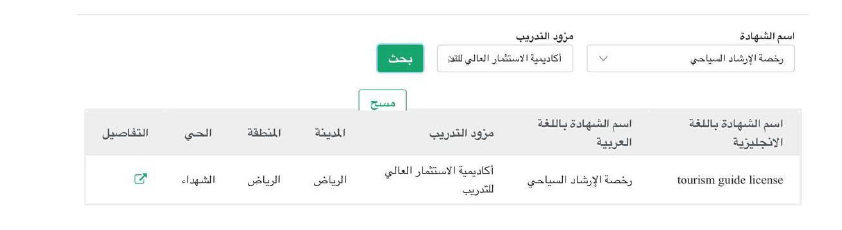
  • Search by certificate name Tourist Guide License and training provider Investment Academy for Training, click Search, then click Details next to the matching program.
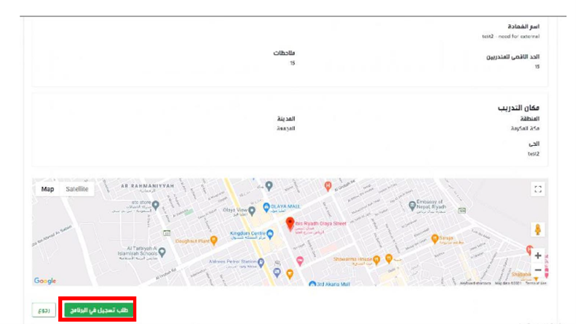
  • After the details open, verify the city and program data match, then click Request registration in the program to complete your Taqat registration.
Note: Registering on Taqat is a mandatory step for HRDF support. Make sure your data (name and ID) matches your academy registration, and select the same course and provider; not registering on Taqat may prevent support from being credited.
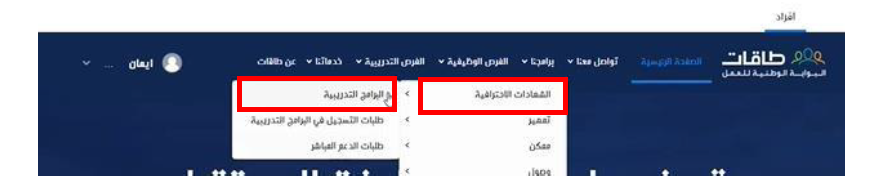
Registering on “Taqat” (HRDF platform) — Essential Skills in Tourist GuidingRegistering on “Taqat” (HRDF platform) — Essential Skills in Tourist GuidingRegistering on “Taqat” (HRDF platform) — Essential Skills in Tourist Guiding
Stage 2

Enrichment Course

Tourism platform — Workforce Development

2

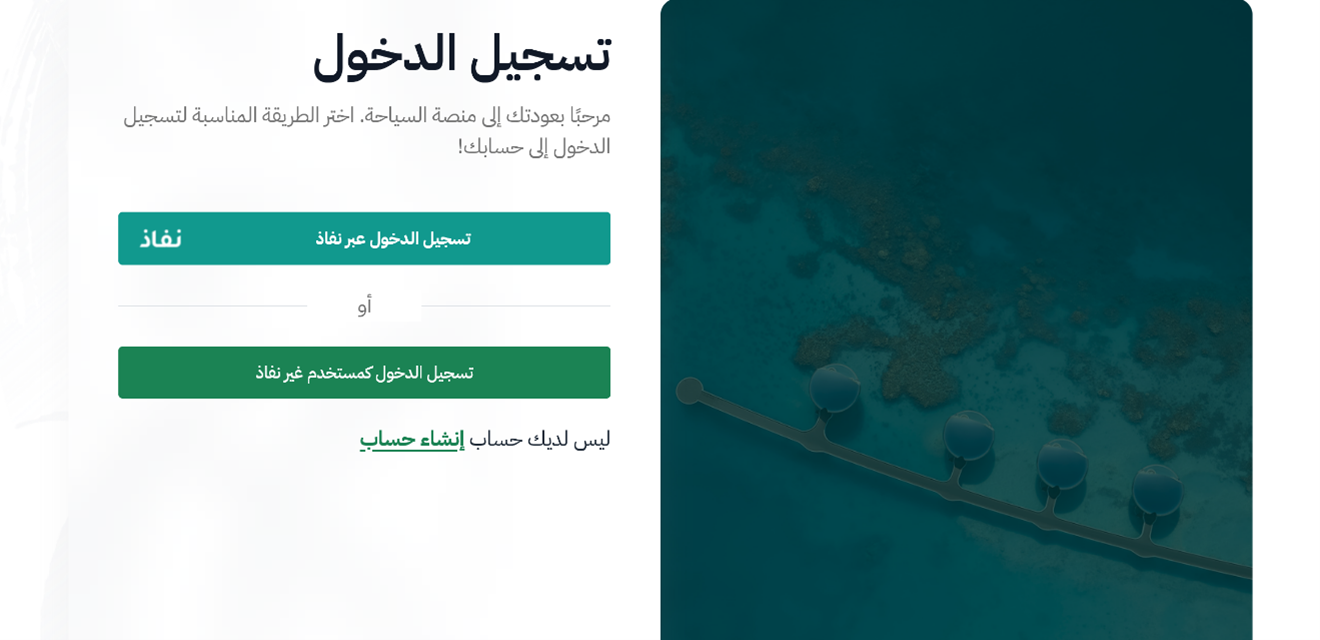
Opening the “Tourism platform” and signing in with “Nafath”

  • Open the Tourism platform (tourism.sa).
  • Sign in using the unified national access Nafath.
Opening the “Tourism platform” and signing in with “Nafath” — Essential Skills in Tourist Guiding
3

Completing your profile to “100%”

  • Go to My profile and fill in what is missing by clicking Edit then Save for each part.
  • Repeat until profile completion reaches 100%.
Completing your profile to “100%” — Essential Skills in Tourist Guiding
4

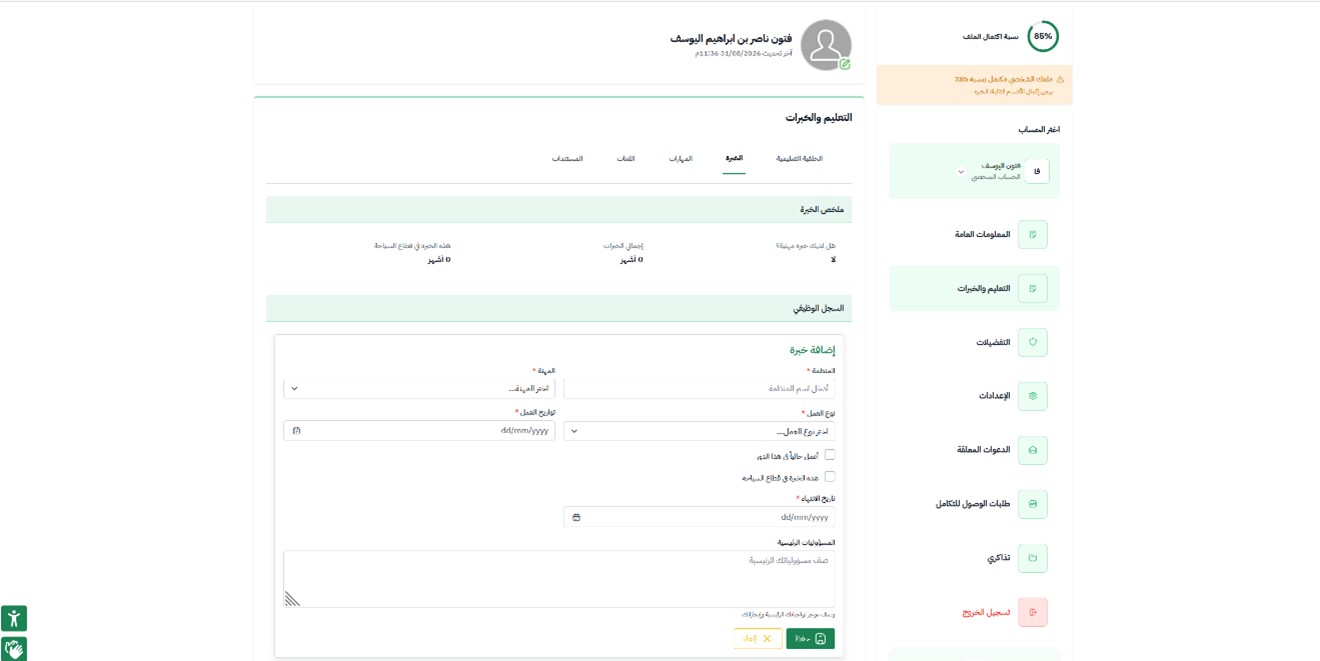
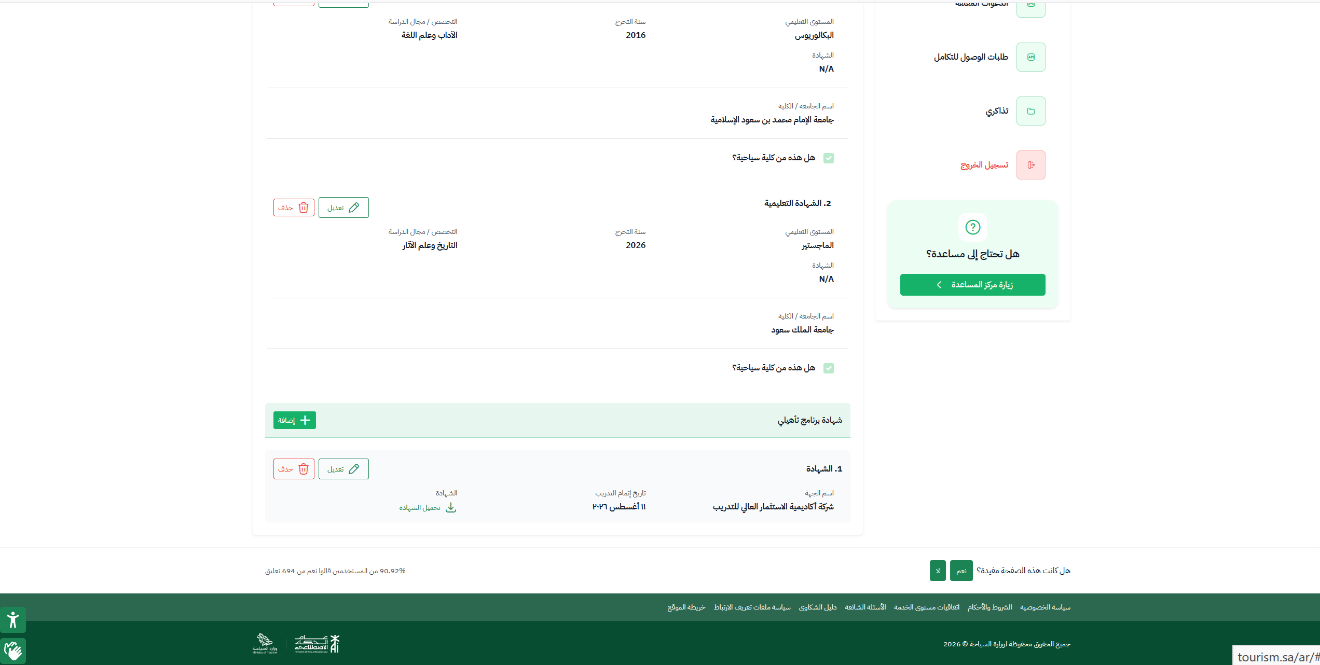
Adding the training-program certificate to your profile

  • Add the certificate of the training program — which runs for 7 days — under My profile → Education and experience.
Adding the training-program certificate to your profile — Essential Skills in Tourist Guiding
5

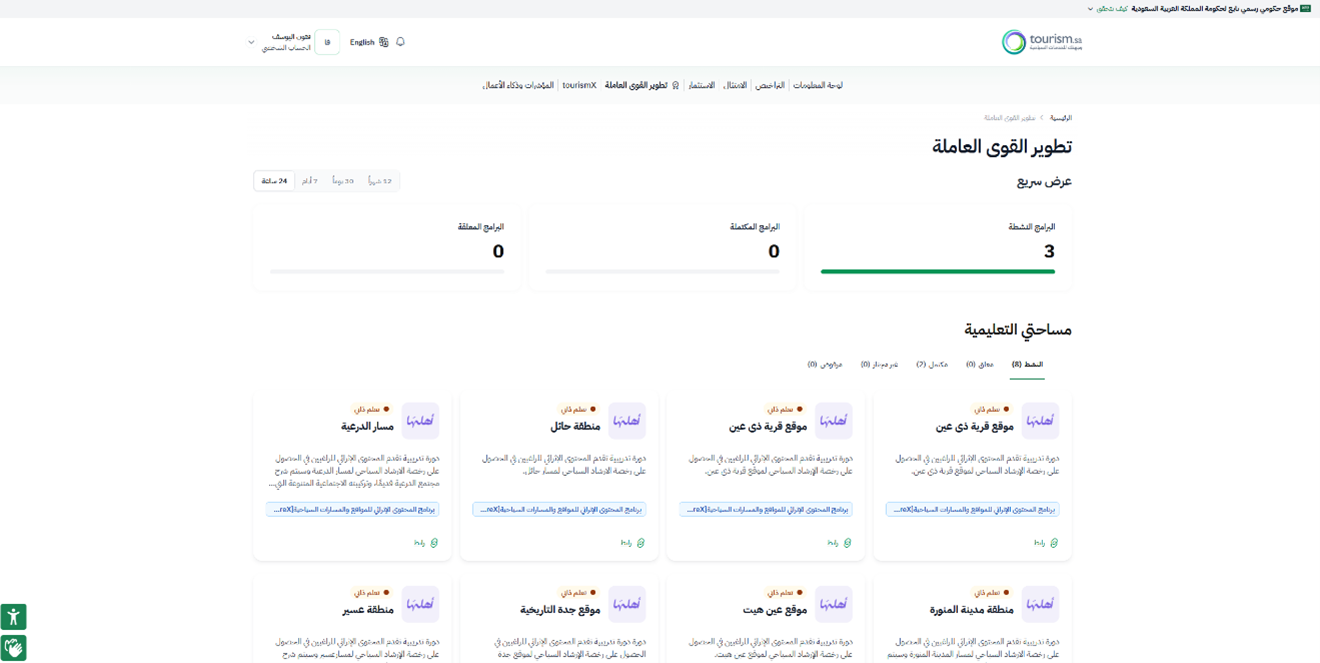
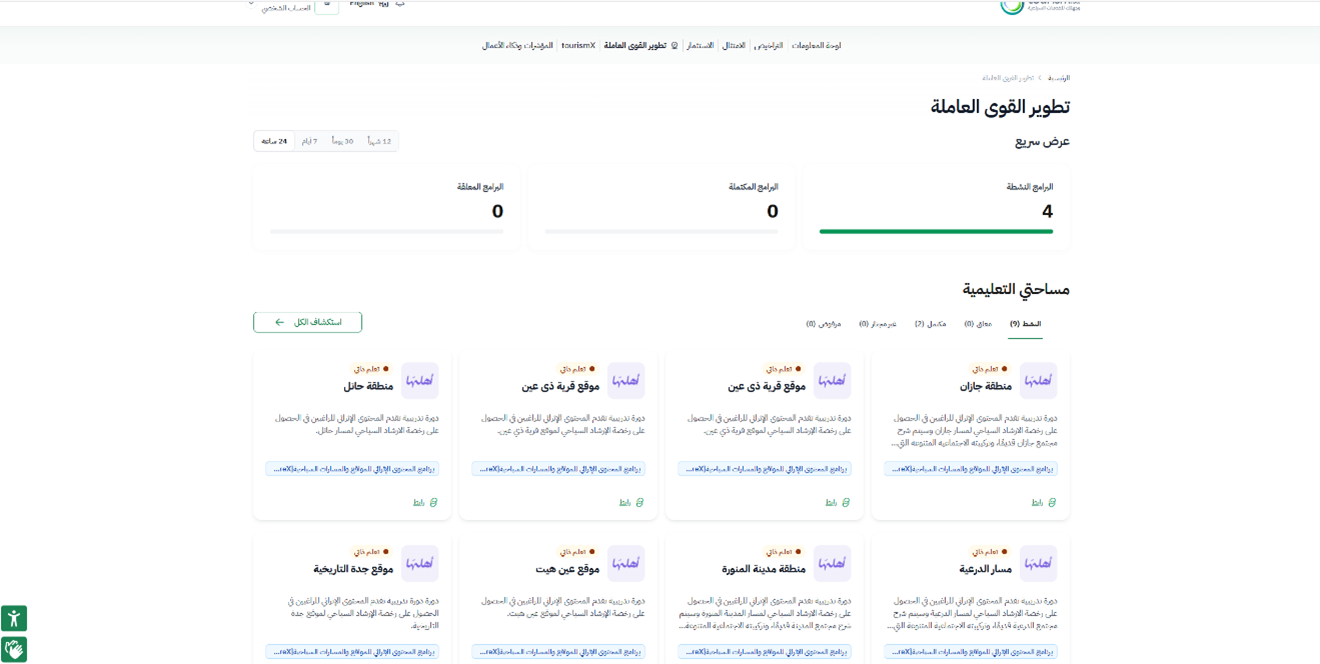
Going to “Workforce Development”

  • From the top menu of the Tourism platform choose Workforce Development.
Going to “Workforce Development” — Essential Skills in Tourist Guiding
6

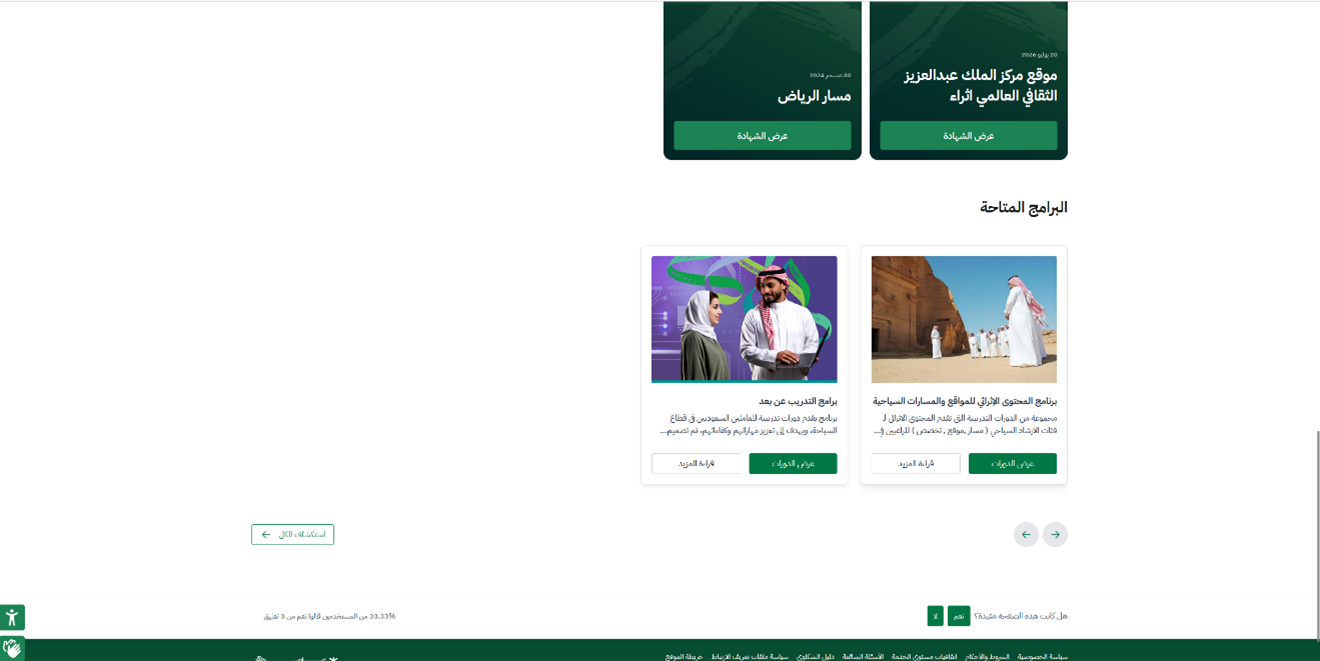
Choosing the “Enrichment Content Program for Tourism Sites and Routes”

  • At the bottom of the page you reach Available programs.
  • Choose Enrichment Content Program for Tourism Sites and Routes, then View courses.
Choosing the “Enrichment Content Program for Tourism Sites and Routes” — Essential Skills in Tourist Guiding
7

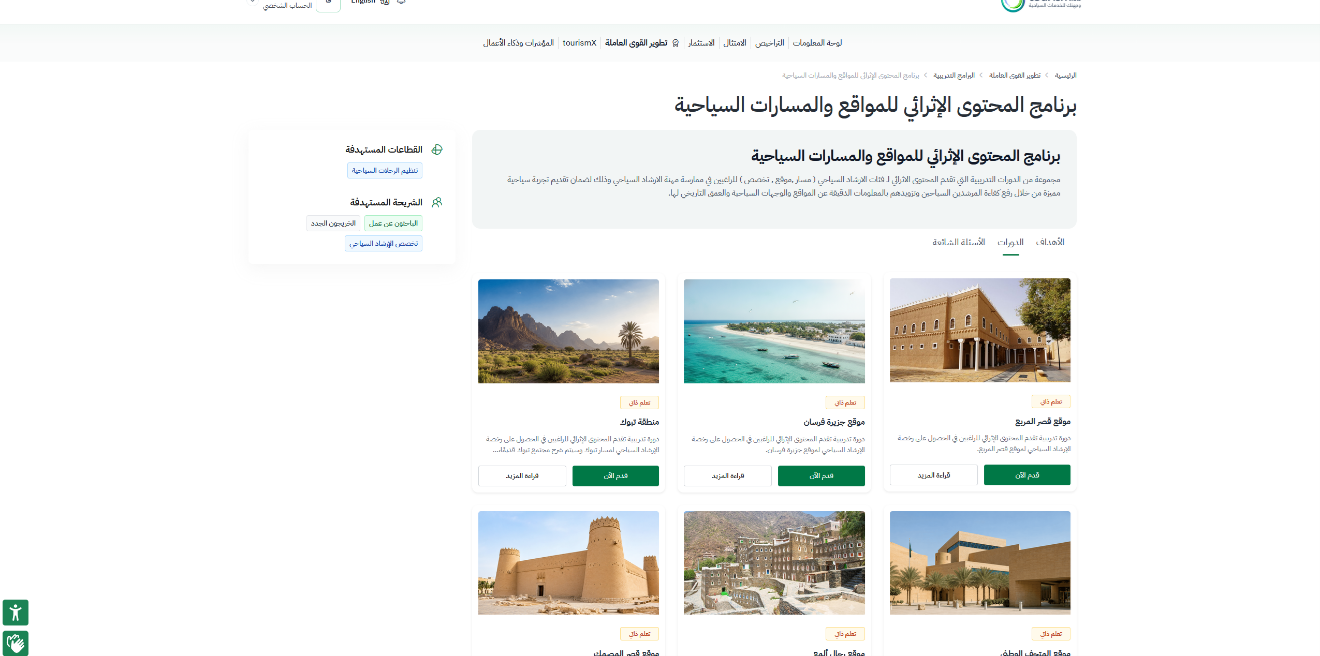
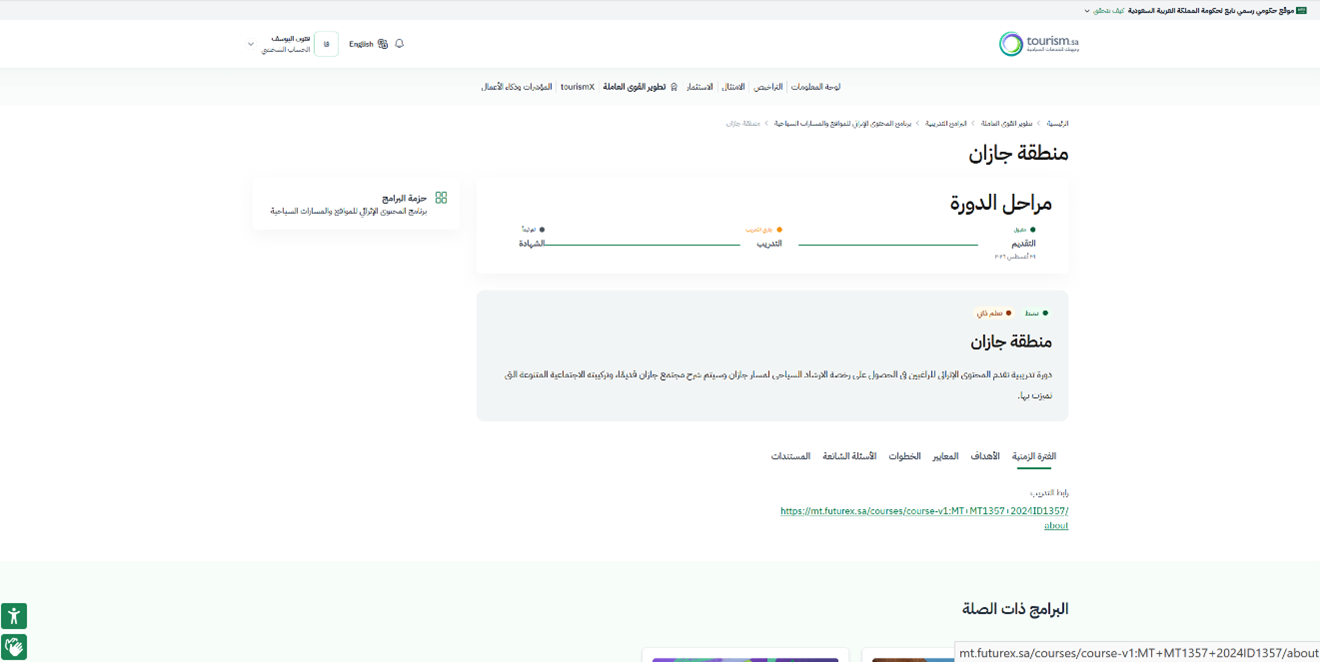
Applying to a route or a site

  • Choose View courses, then click Apply now next to the route or site you want.
Note: You can apply to more than one route or site.
Applying to a route or a site — Essential Skills in Tourist Guiding
8

Reaching the course from “My learning space”

  • After applying, the route appears under Workforce Development → My learning space → the Active tab.
  • Click Course link.
Reaching the course from “My learning space” — Essential Skills in Tourist GuidingReaching the course from “My learning space” — Essential Skills in Tourist Guiding
9

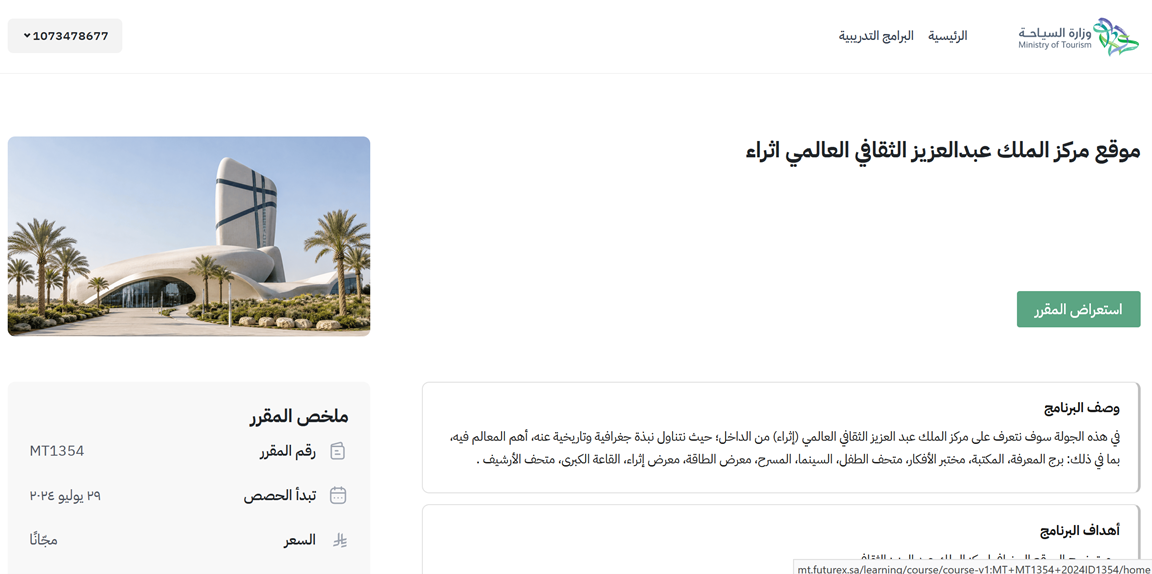
Starting the course with “Browse the course”

  • Click Browse the course to start.
Caution: If Browse the course appears greyed out, or the message Enrolment in this course is by invitation appears, check that you are signed in on this same page.
Starting the course with “Browse the course” — Essential Skills in Tourist Guiding
10

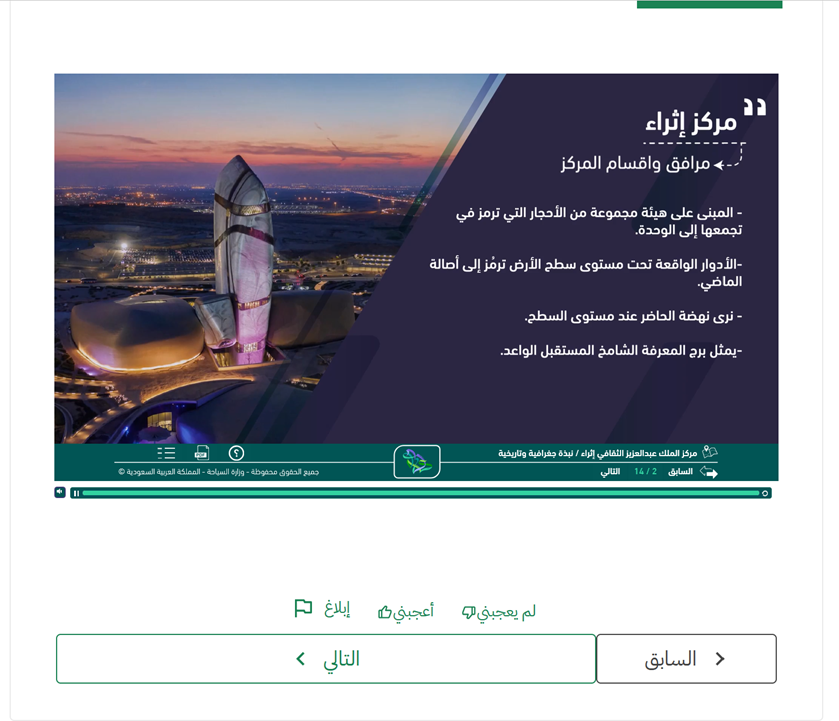
Watching the slides and moving to the final exam

  • Follow the steps to watch the course introduction.
  • To move between content slides click Next inside the player box.
  • Once all slides are finished, click Next at the very bottom of the page to move to the final exam.
Caution: Skipping any segment of the content is not allowed.
Watching the slides and moving to the final exam — Essential Skills in Tourist Guiding
11

Certificate instructions after the exam

  • After taking the final exam, the instructions for obtaining the training certificate appear.
Certificate instructions after the exam — Essential Skills in Tourist Guiding
12

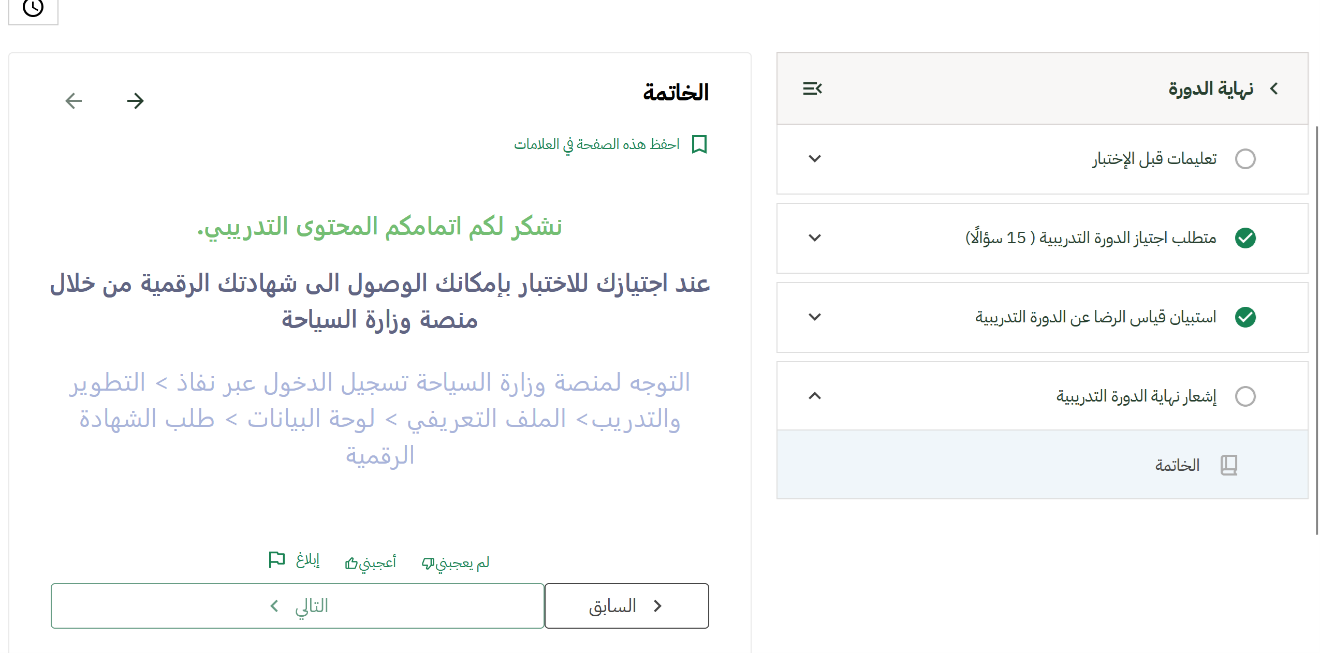
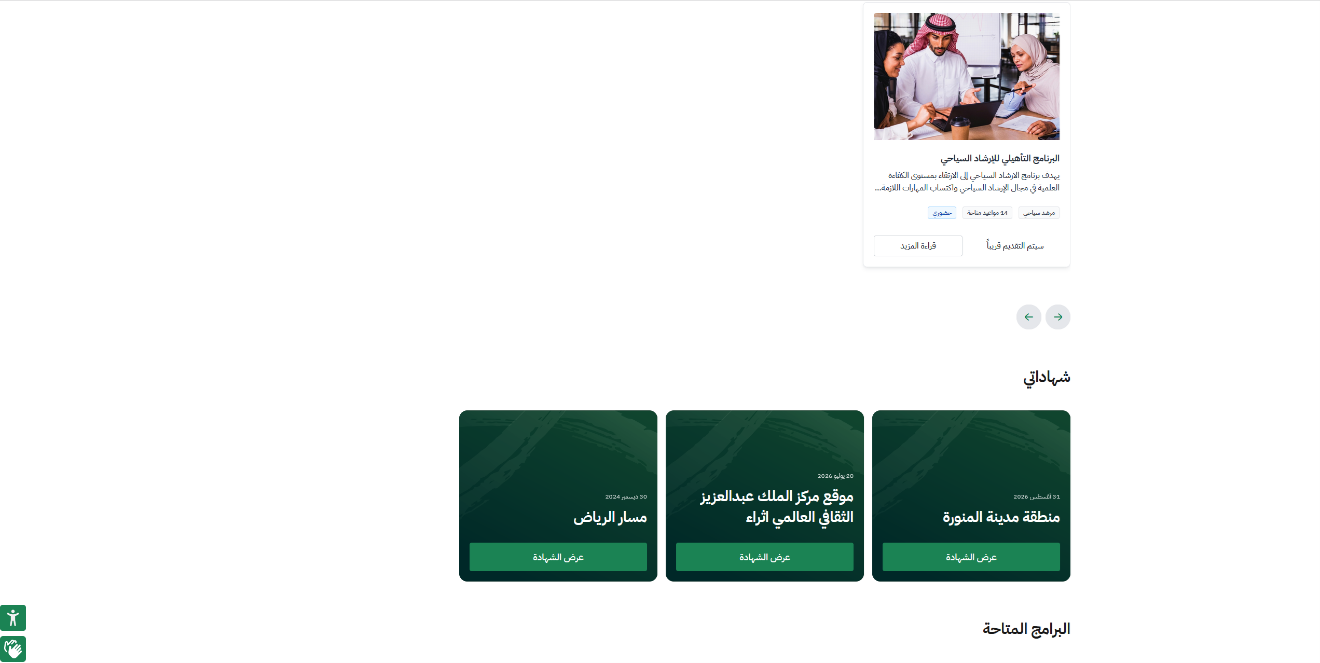
The certificate appears in “My learning space”

  • After finishing the route and passing it, the certificate appears under Workforce Development → My learning space.
The certificate appears in “My learning space” — Essential Skills in Tourist Guiding
Stage 3

Medical Checkup

Medical fitness form from a government hospital or clinic

13

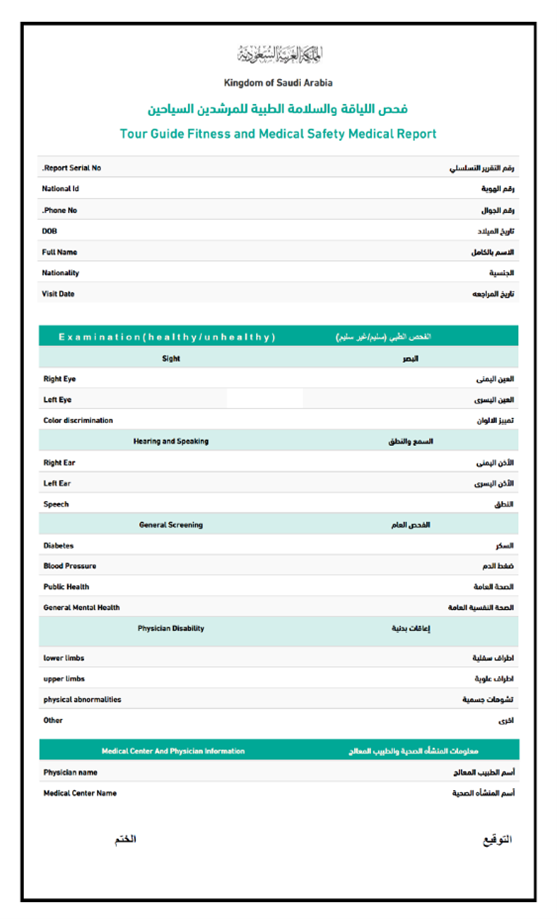
The medical checkup

  • You can have the medical checkup done at a government hospital or clinic.
  • The form is among the files attached for you in your profile on the Investment Academy website.
  • After the checkup, keep a PDF copy of the medical document to upload when issuing the license.
The medical checkup — Essential Skills in Tourist Guiding
Stage 4

First Aid

Mutaaheb platform — Life Ambassador course

14

Attending the first-aid course

  • Register on the Mutaaheb platform one day before the Life Ambassador course.
  • Make sure to attend the course, which lasts one day.
  • It is held during the 7-day training program.
Stage 5

Police Clearance

Absher website — Public Security

15

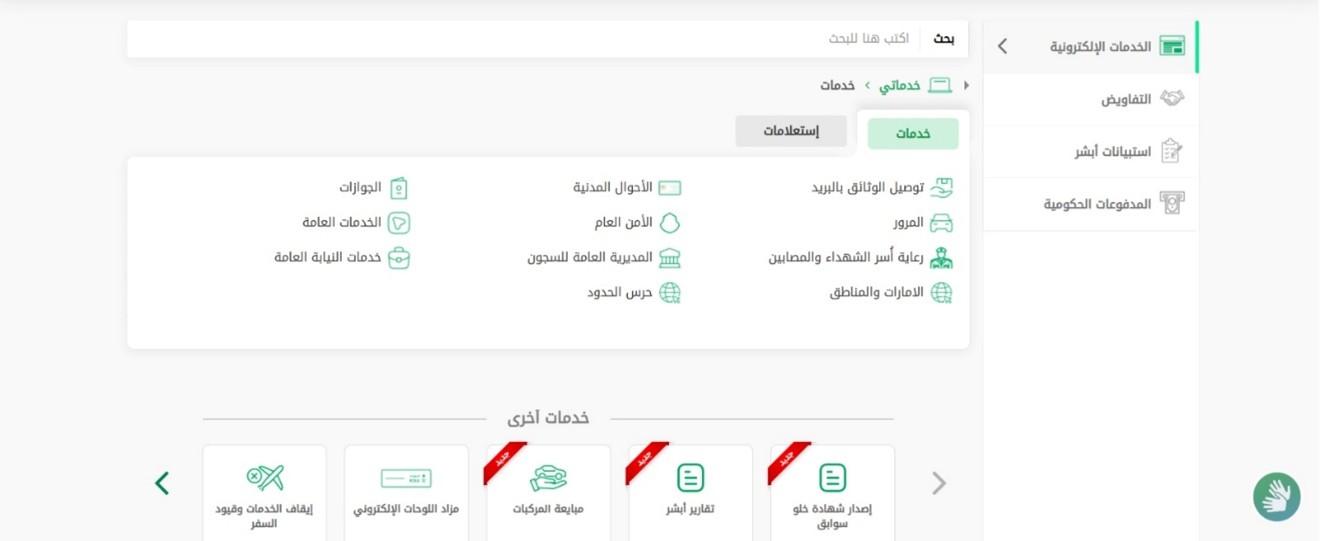
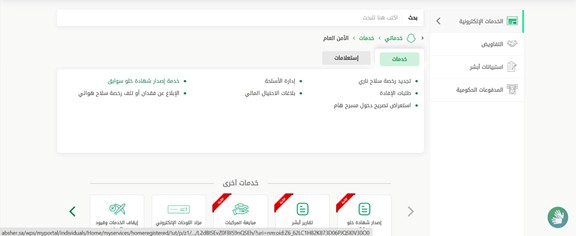
Signing in to “Absher” → “Public Security”

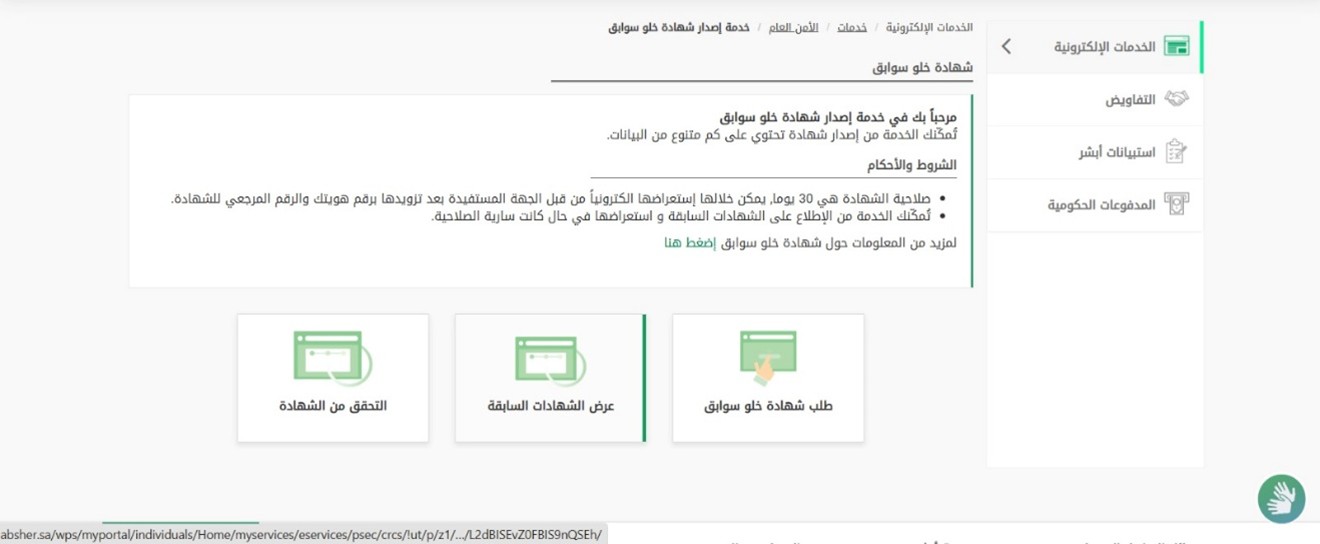
  • The certificate is issued through the Absher website (not the app).
  • Go to the Absher website → My services → Services → Public Security.
Signing in to “Absher” → “Public Security” — Essential Skills in Tourist Guiding
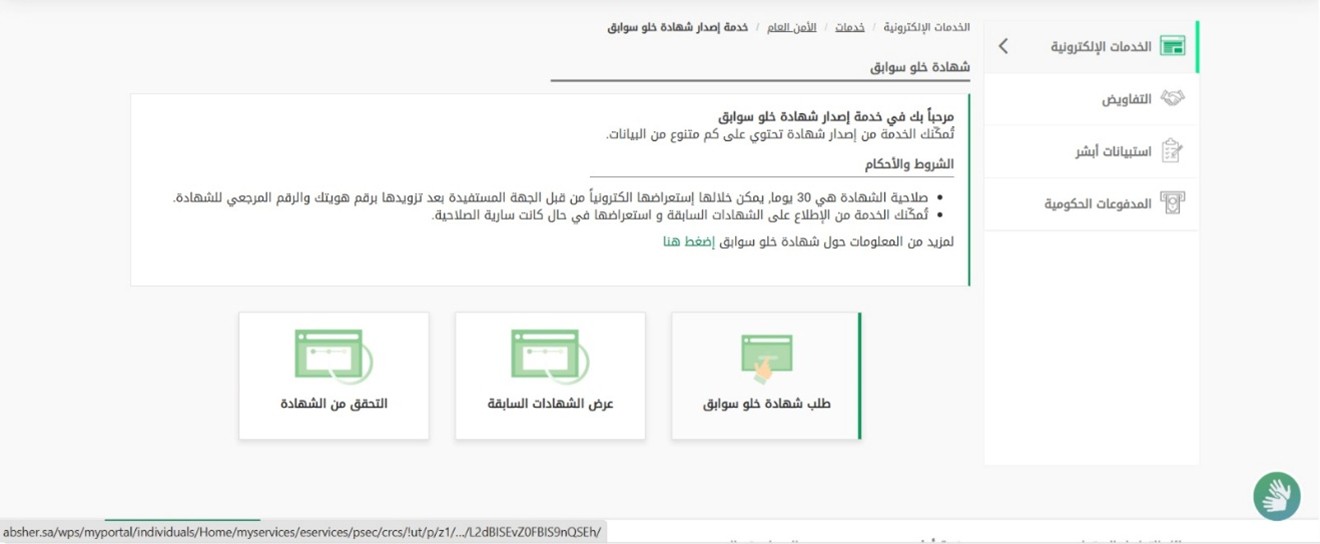
16

Choosing the “Issue a police-clearance certificate” service

  • Choose the service Issue a police-clearance certificate.
  • Then choose Request a police-clearance certificate.
Choosing the “Issue a police-clearance certificate” service — Essential Skills in Tourist GuidingChoosing the “Issue a police-clearance certificate” service — Essential Skills in Tourist Guiding
17

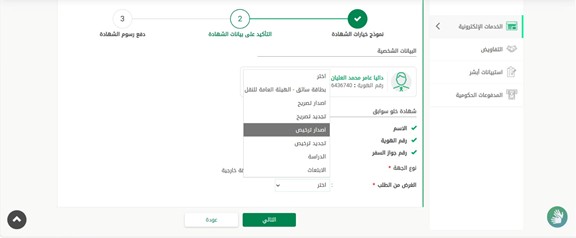
Filling in the request data

  • Choose entity type: Internal.
  • And purpose of the request: Issuing a license.
Filling in the request data — Essential Skills in Tourist Guiding
18

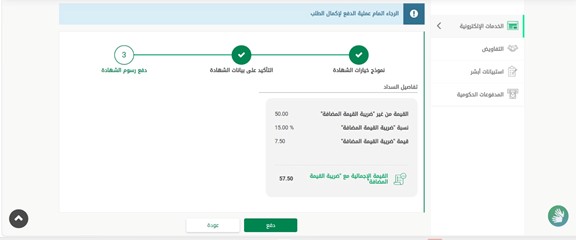
Paying the certificate fee

  • Pay the certificate fee of 57.5 SAR.
Paying the certificate fee — Essential Skills in Tourist Guiding
19

Following the request and saving the certificate

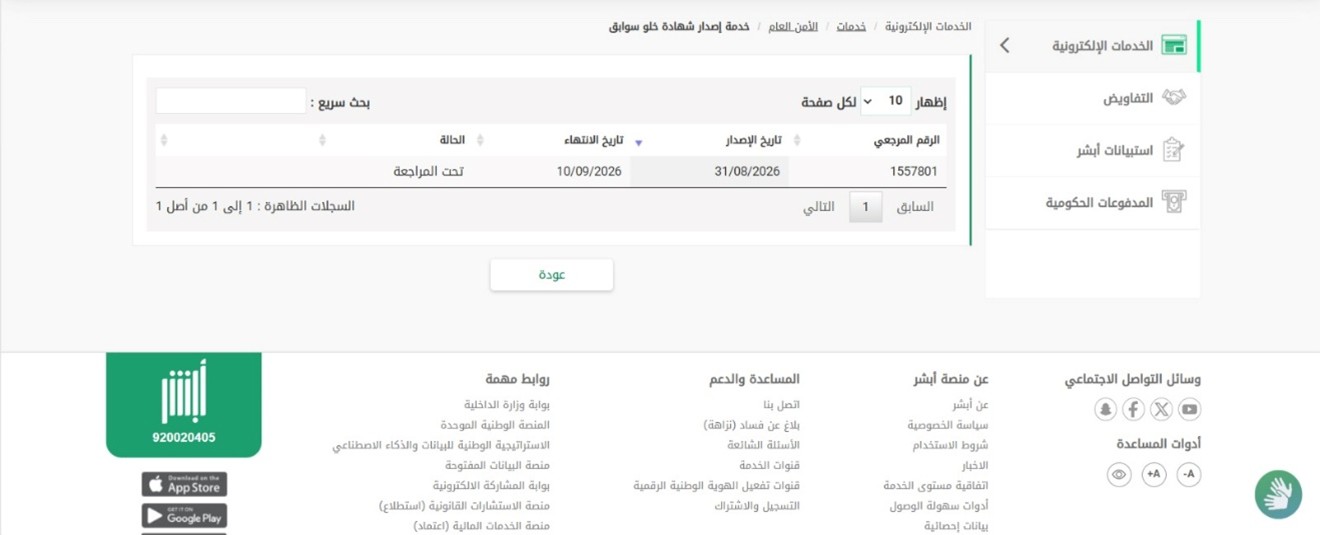
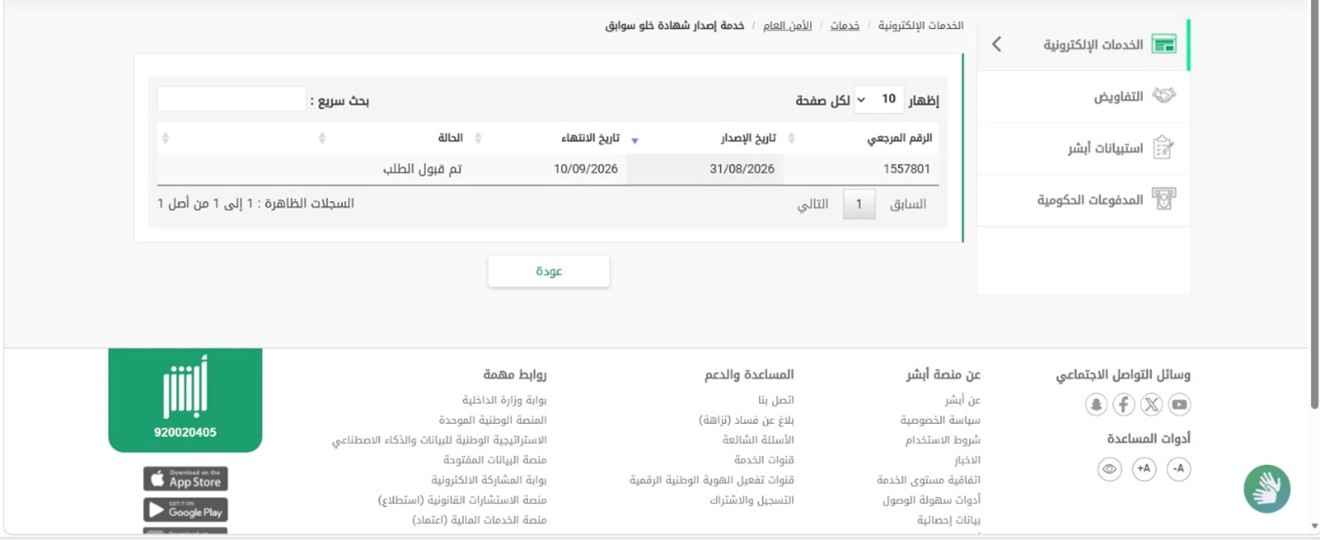
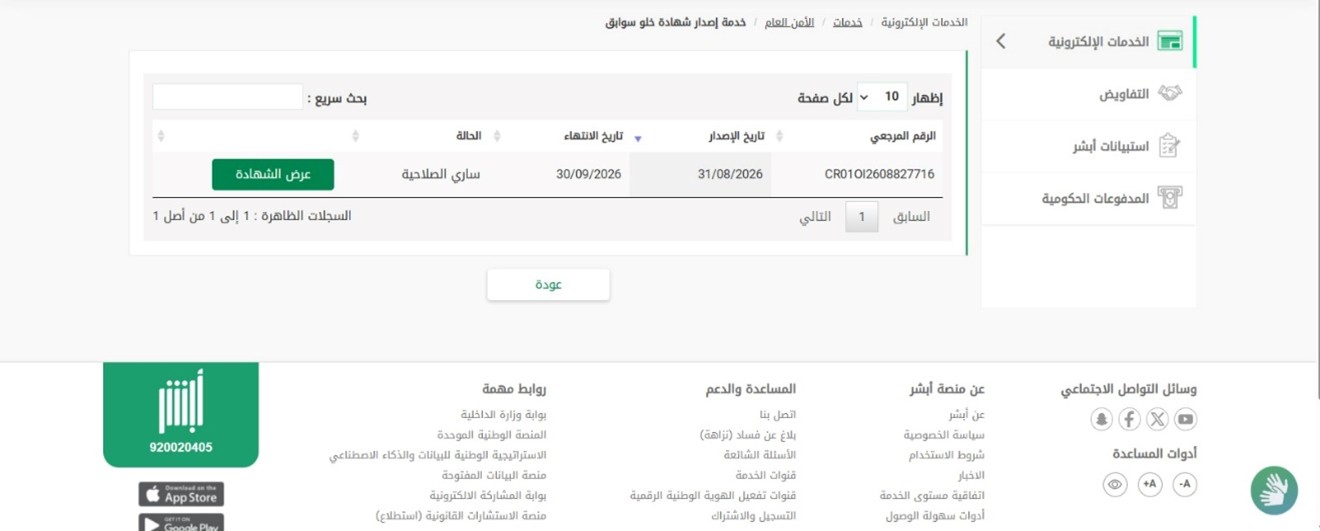
  • Go to Services → Public Security → Issue a police-clearance certificate → View previous certificates.
  • Three request states appear within an hour: Under review, then Request accepted, then Valid.
  • Once it is Valid you can view the certificate and save it to upload later on the licensing platform.
Following the request and saving the certificate — Essential Skills in Tourist GuidingFollowing the request and saving the certificate — Essential Skills in Tourist GuidingFollowing the request and saving the certificate — Essential Skills in Tourist GuidingFollowing the request and saving the certificate — Essential Skills in Tourist Guiding
Stage 6

License Issuance

Tourism platform — Licenses

20

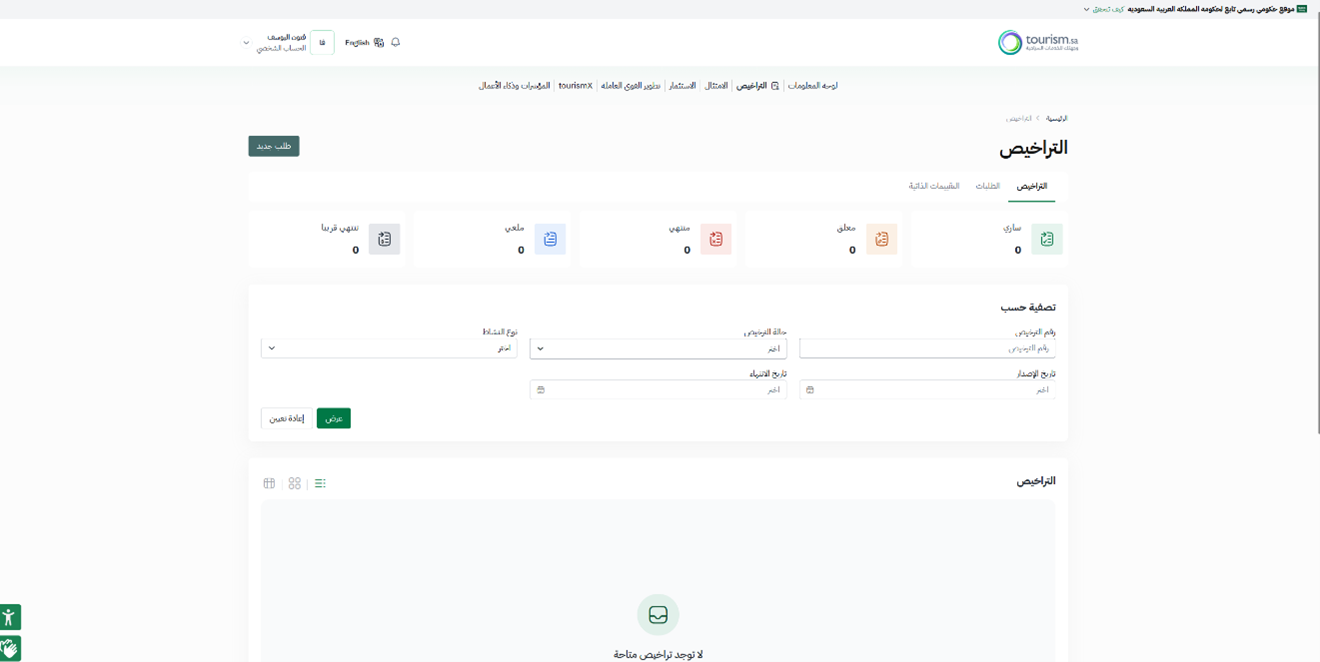
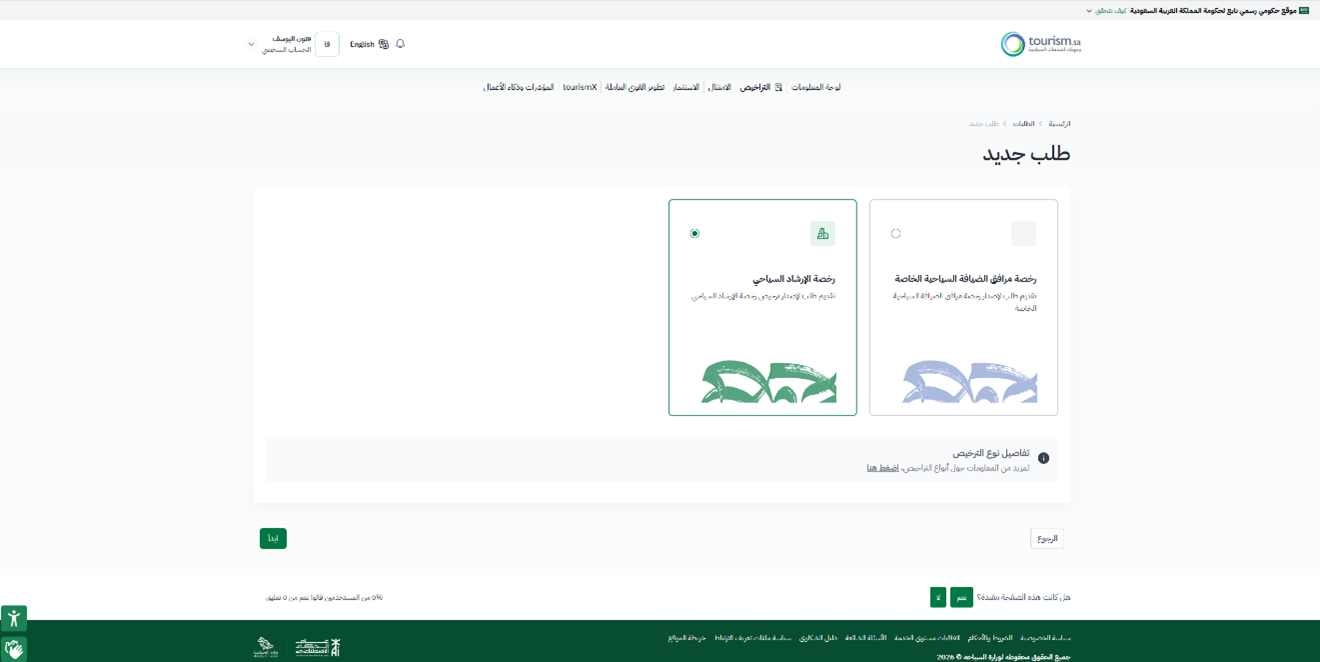
Opening “Licenses” and starting a “New request”

  • Open the Tourism platform and sign in with Nafath.
  • Choose Licenses → New request.
  • Choose Tourist Guide License.
Opening “Licenses” and starting a “New request” — Essential Skills in Tourist GuidingOpening “Licenses” and starting a “New request” — Essential Skills in Tourist Guiding
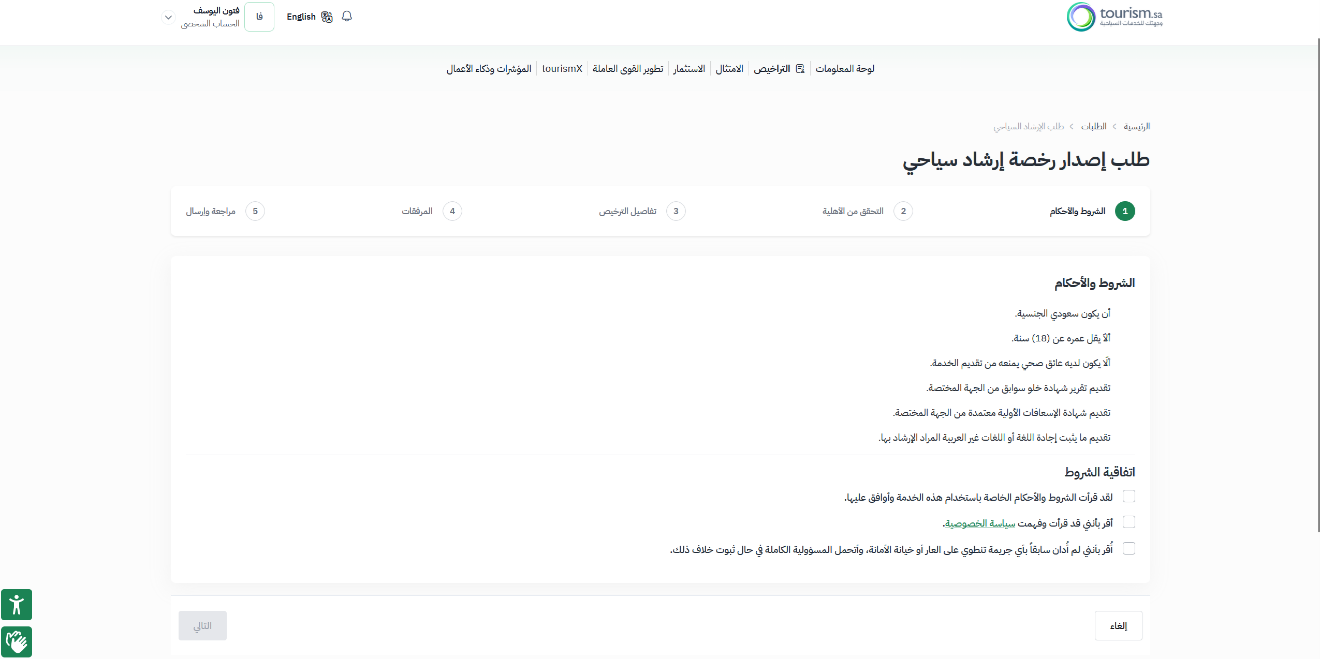
21

Accepting the terms agreement

  • Read the terms agreement; if you agree, tick the statements then click Next.
Accepting the terms agreement — Essential Skills in Tourist Guiding
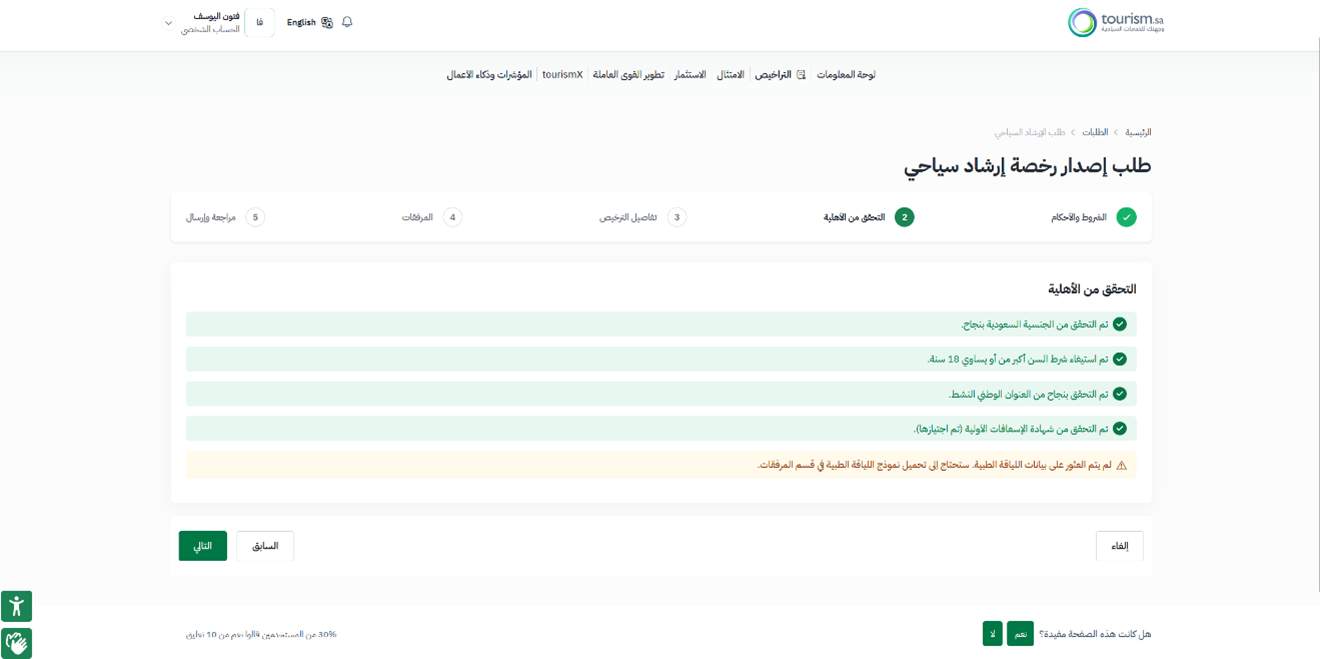
22

Automatic eligibility check

  • The Automatic eligibility check appears.
  • If an error mark appears next to National address, update it through the SPL website.
  • If an error mark appears next to First-aid certificate, attach it manually within the files.
  • As for the Medical fitness form, you can attach it on the next page.
Automatic eligibility check — Essential Skills in Tourist Guiding
23

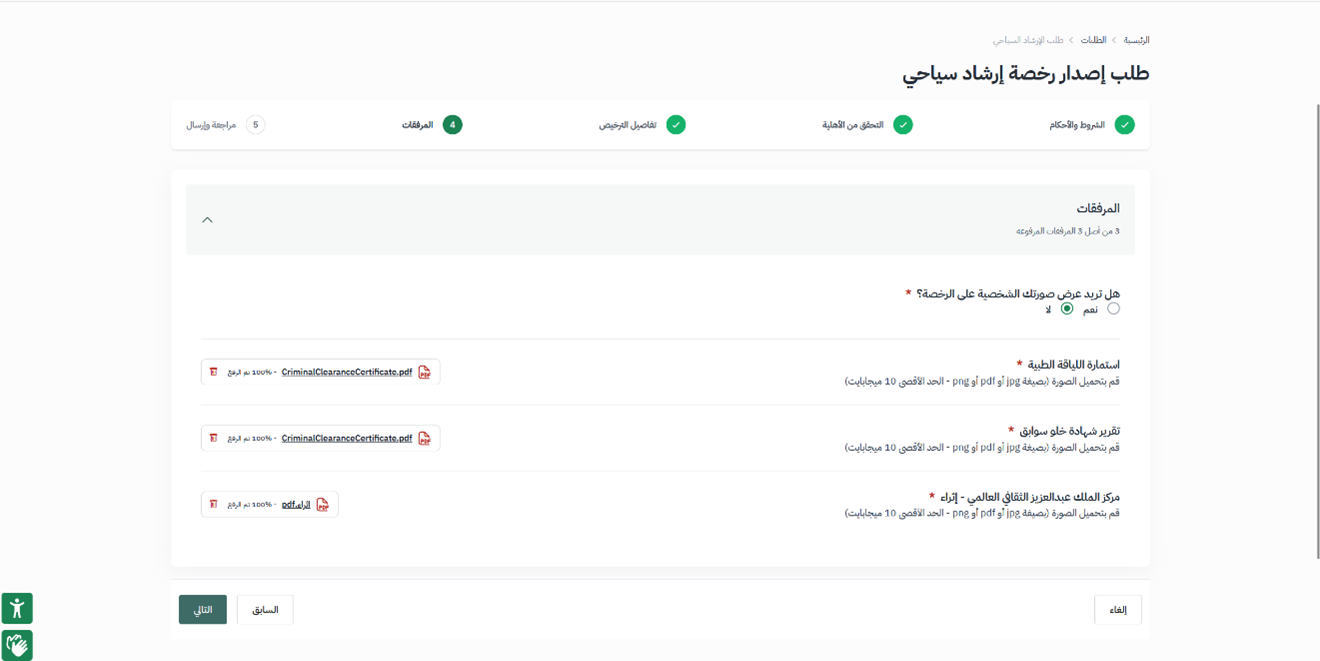
License details and attachments

  • On the license-details page choose the license duration: 3 years for 1,000 SAR.
  • Answer No to: Do you hold a sites training certificate?
  • If you want your personal photo shown on the license choose Yes — this requires uploading a 4×6 photo on a white background.
  • Upload the following requirements: the Medical fitness form, the Police-clearance certificate and the First-aid certificate.
License details and attachments — Essential Skills in Tourist Guiding
24

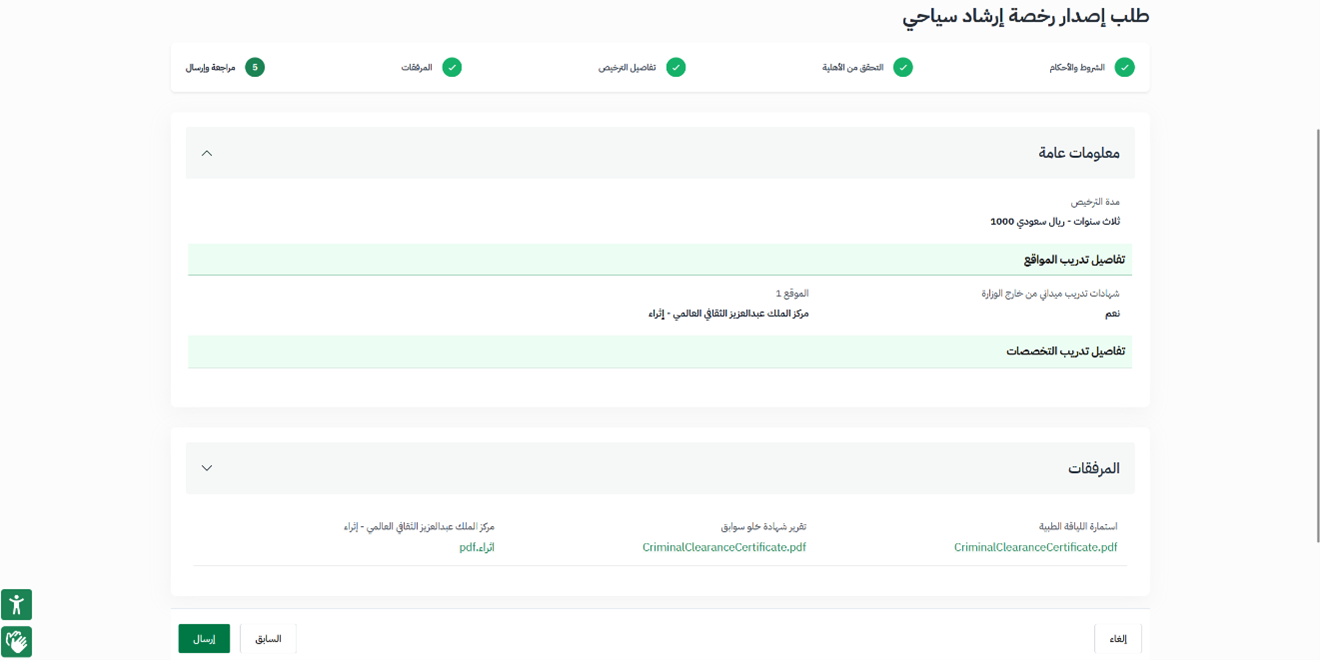
Reviewing the data and submitting

  • Verify the data before submitting the request.
Reviewing the data and submitting — Essential Skills in Tourist Guiding
25

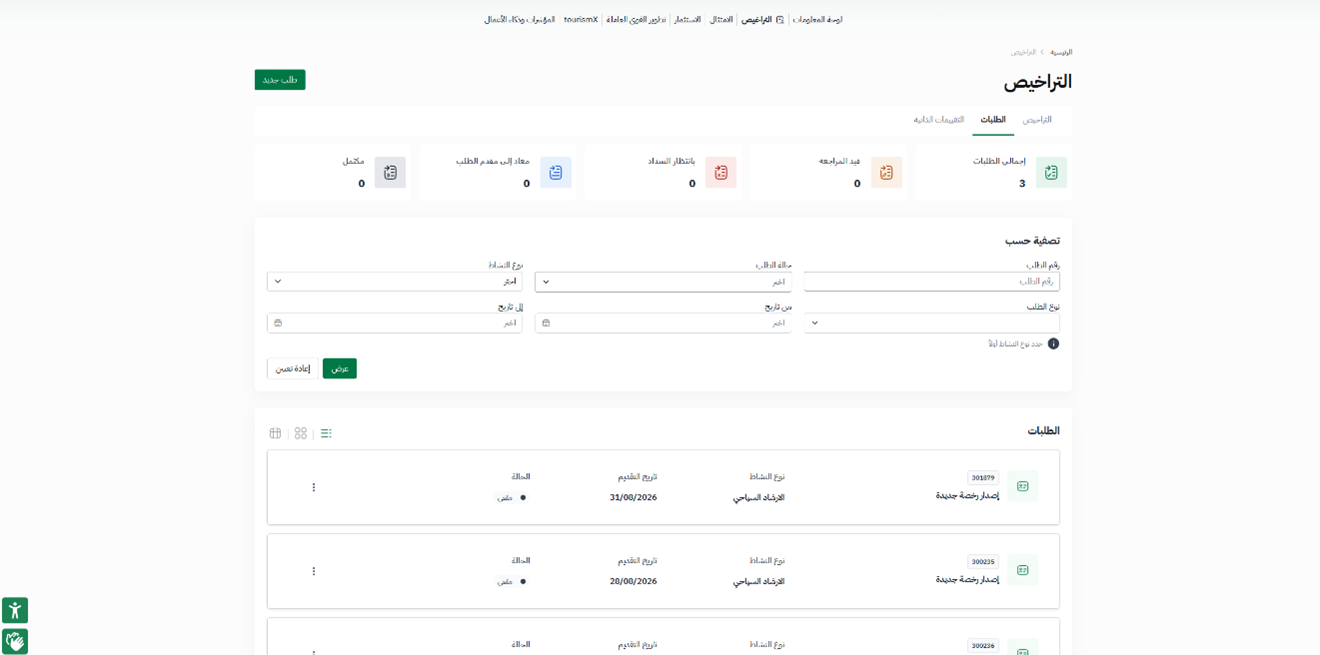
Following the request status

  • You can follow the request status through Licenses → Requests.
Following the request status — Essential Skills in Tourist Guiding
26

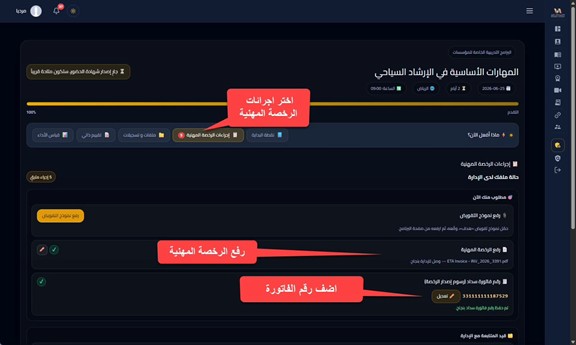
The invoice, the payment and issuing the license

  • After the request is accepted the invoice appears — attach it through your personal account on the Investment Academy website so the payment is made.
  • Your license then appears on the Tourism platform and in Tawakkalna.
  • Once the license is issued, attach a copy of it through your personal account on the Investment Academy website.
The invoice, the payment and issuing the license — Essential Skills in Tourist Guiding