Applicant Guide — Essential Skills in Tourist Guiding
A step-by-step guide covering the entire application journey, from creating your account and submitting your application to enrolling in the training course, illustrated with screenshots for every stage.
In partnership with the Ministry of Tourism, the Human Resources Development Fund (HRDF), and NOCN.
Journey stages
Click any stage to jump straight to it1
Program page & starting your application
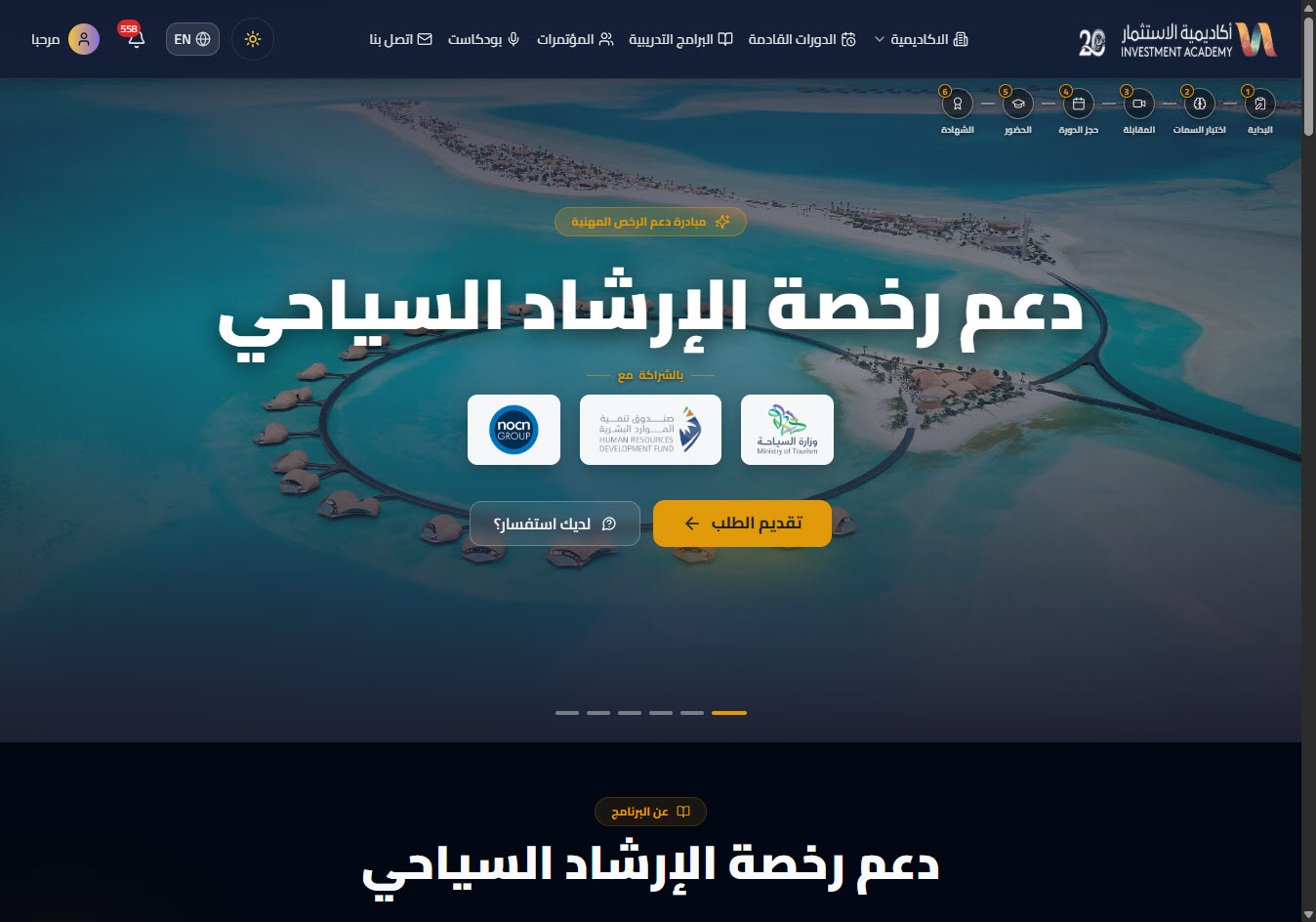
- Open the program page and review the initiative details and its partners (Ministry of Tourism, the Human Resources Development Fund “HRDF”, and NOCN).
- The “journey stages” bar at the top shows where you are in each step.
- Click “Apply” to start your journey. For any question, click “Have a question?”.
2
Sign in or create an account
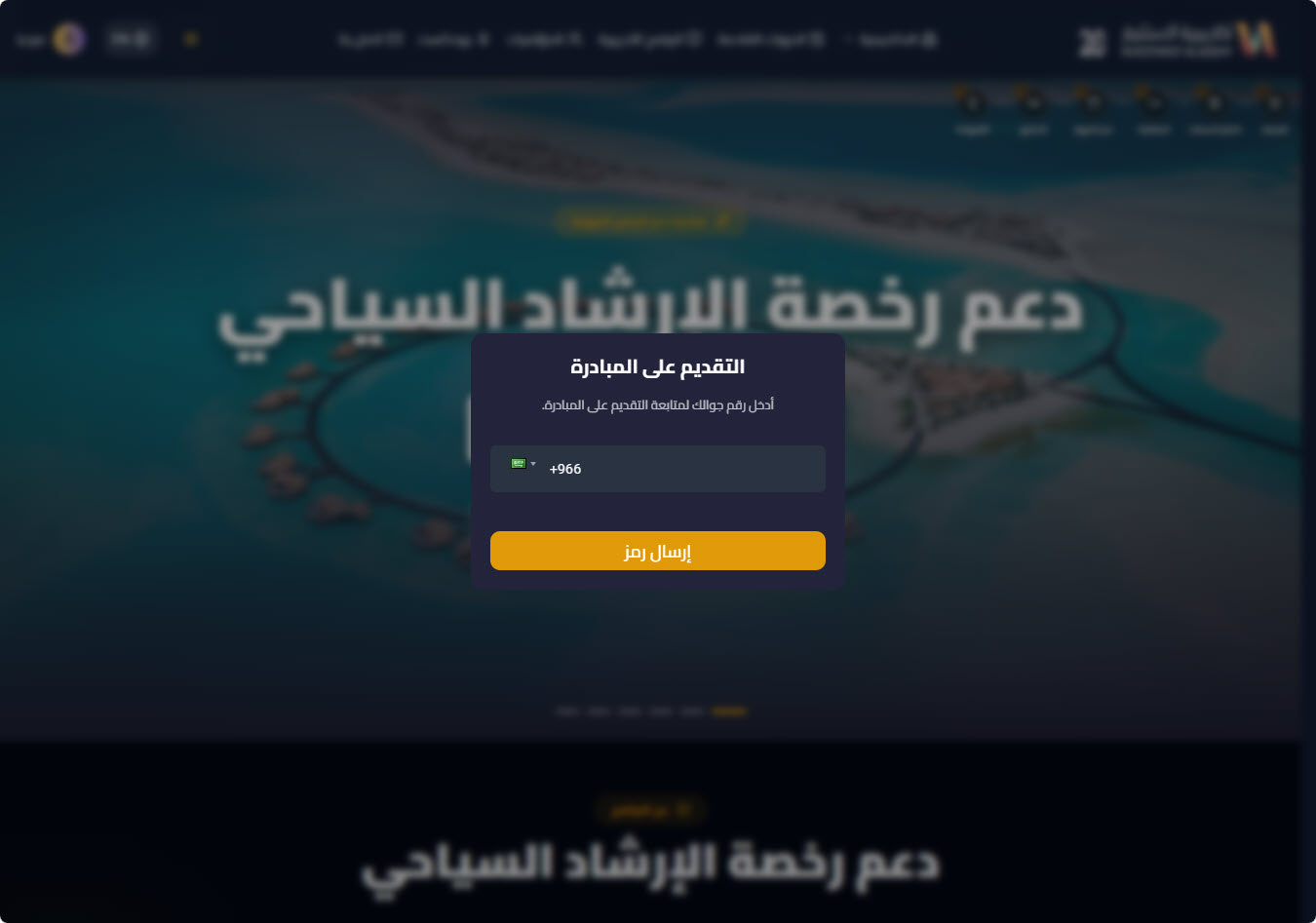
- Enter your mobile number, then click “Send code”.
- You’ll receive a verification code (OTP); enter it to sign in.
- If you don’t have an account, you’ll complete your basic details to create one and continue directly.
3
Fill in the application form
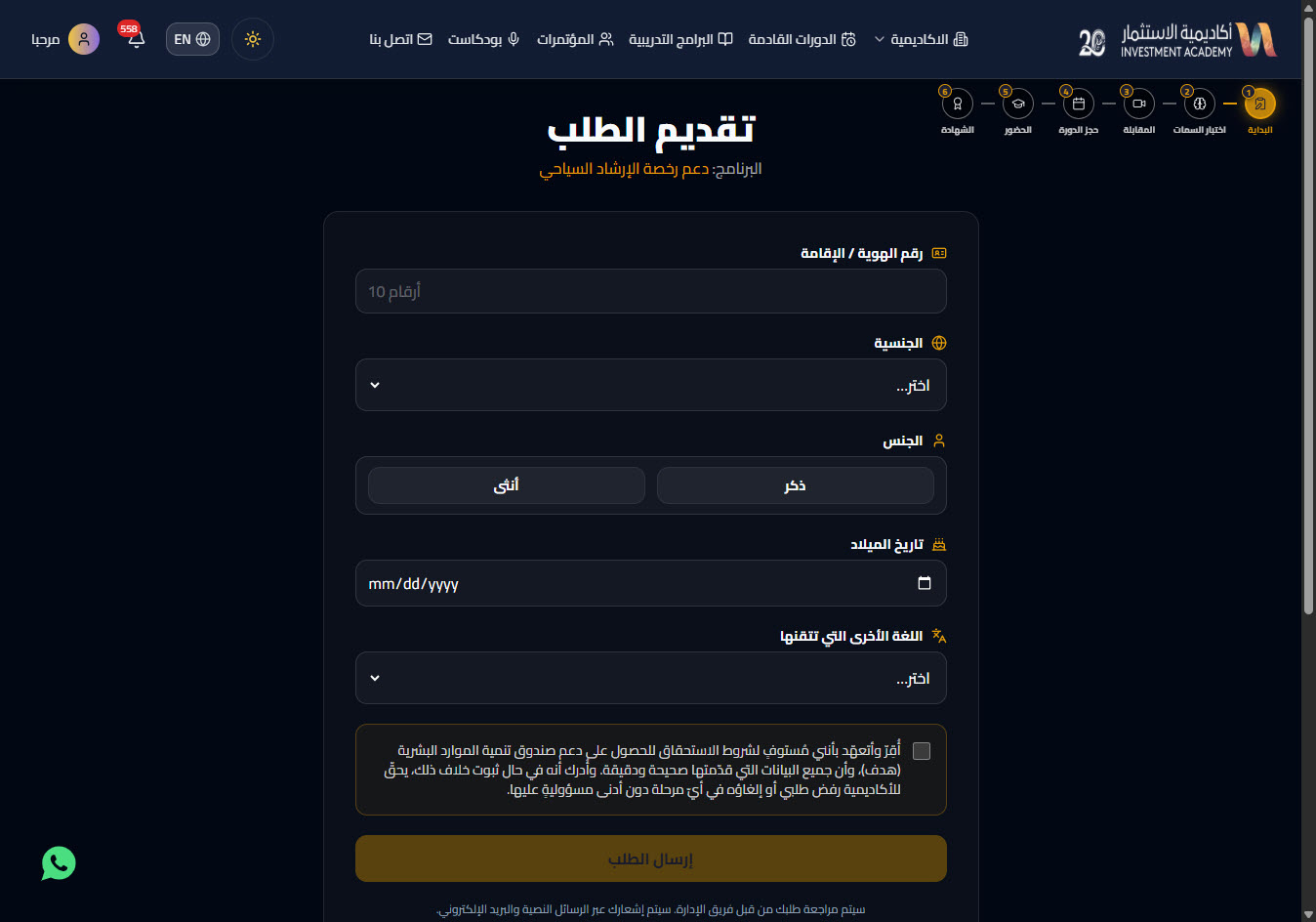
- Enter the required data: Saudi national ID number (10 digits starting with 1), nationality, gender, date of birth, and another language you master.
- Read the “Declaration” carefully and tick the consent box.
- Click “Submit application”.
Note: Make sure your data is correct and matches your official ID; incorrect data may lead to rejection of the application.
4
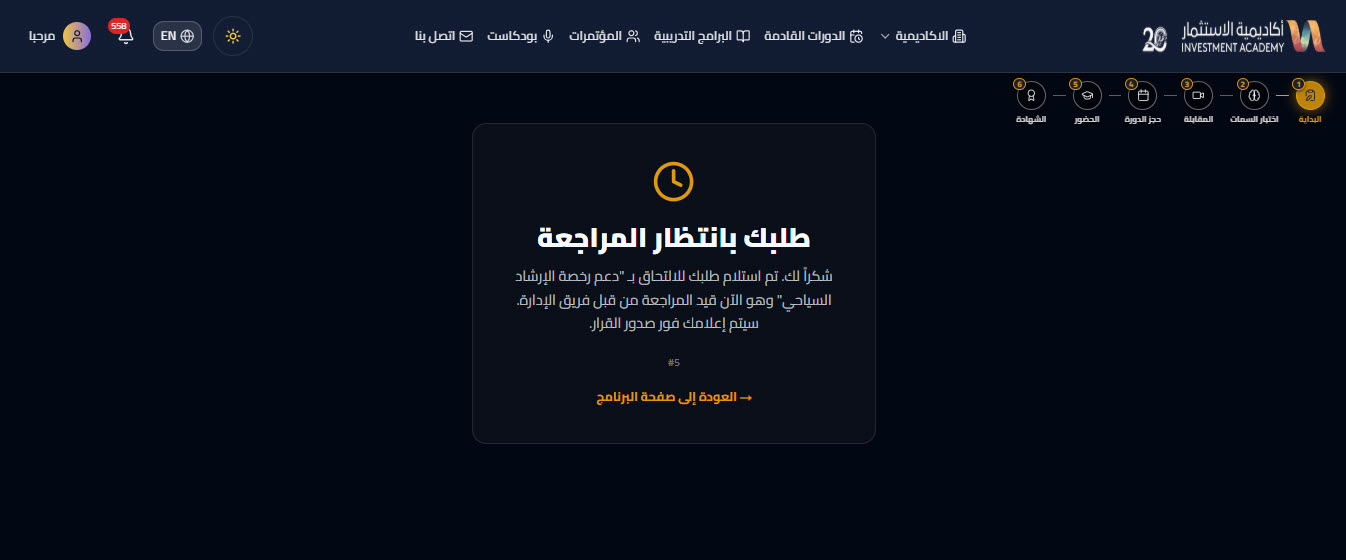
Application under review
- After submitting, “Your application is under review” appears while the team reviews it.
- You’ll receive an SMS and an email as soon as the decision is issued.
5
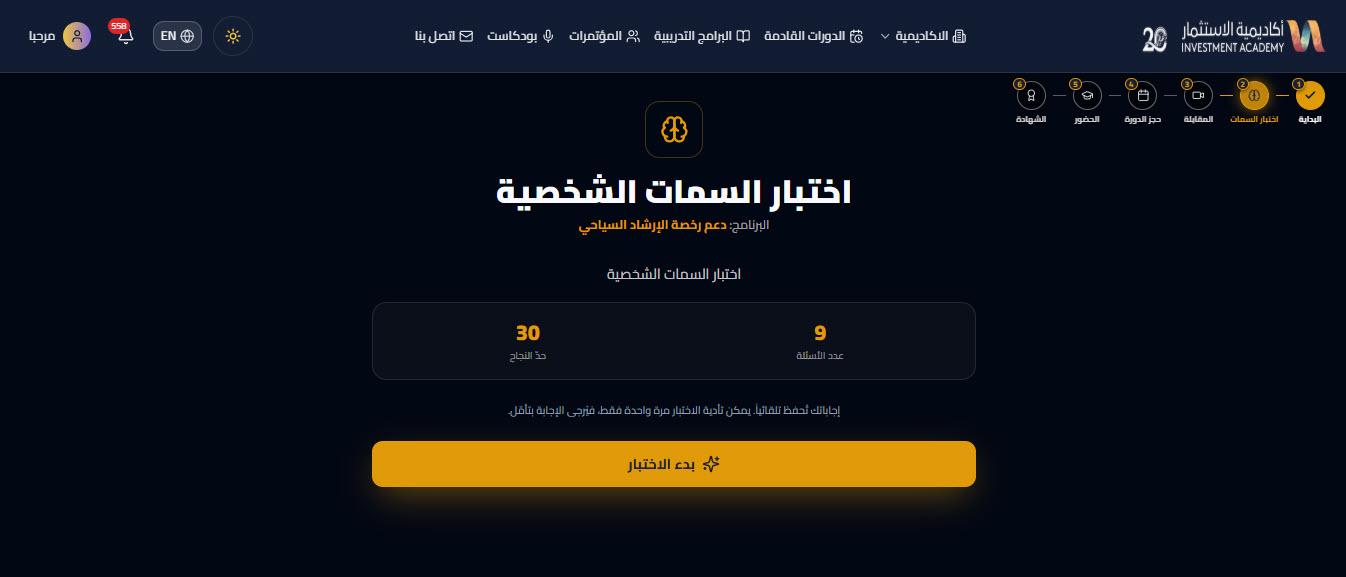
Personality assessment
- After approval, go to “Personality assessment”, review the passing score and number of questions, then click “Start test”.
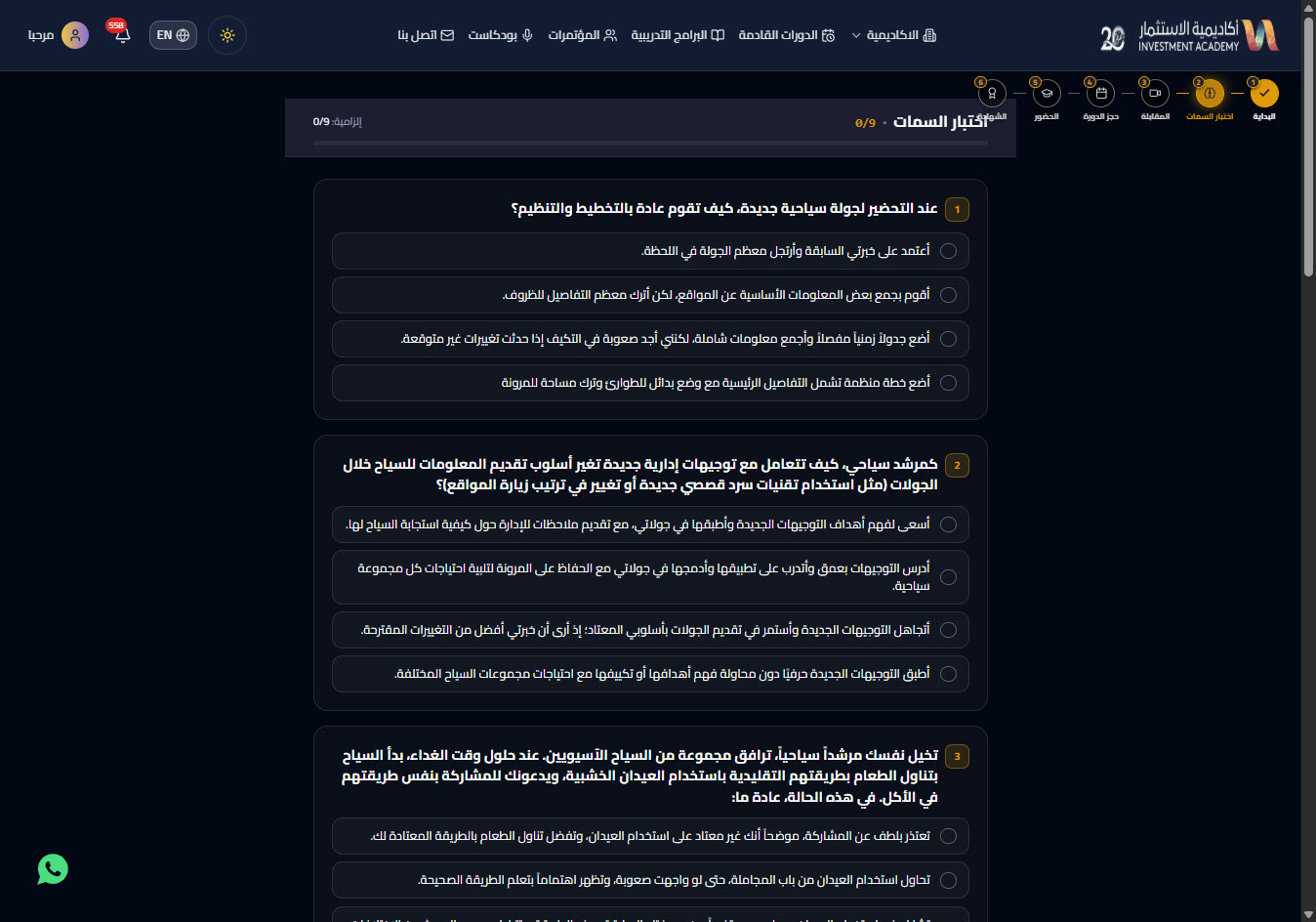
- Answer each question by choosing the most suitable option; your answers are saved automatically.
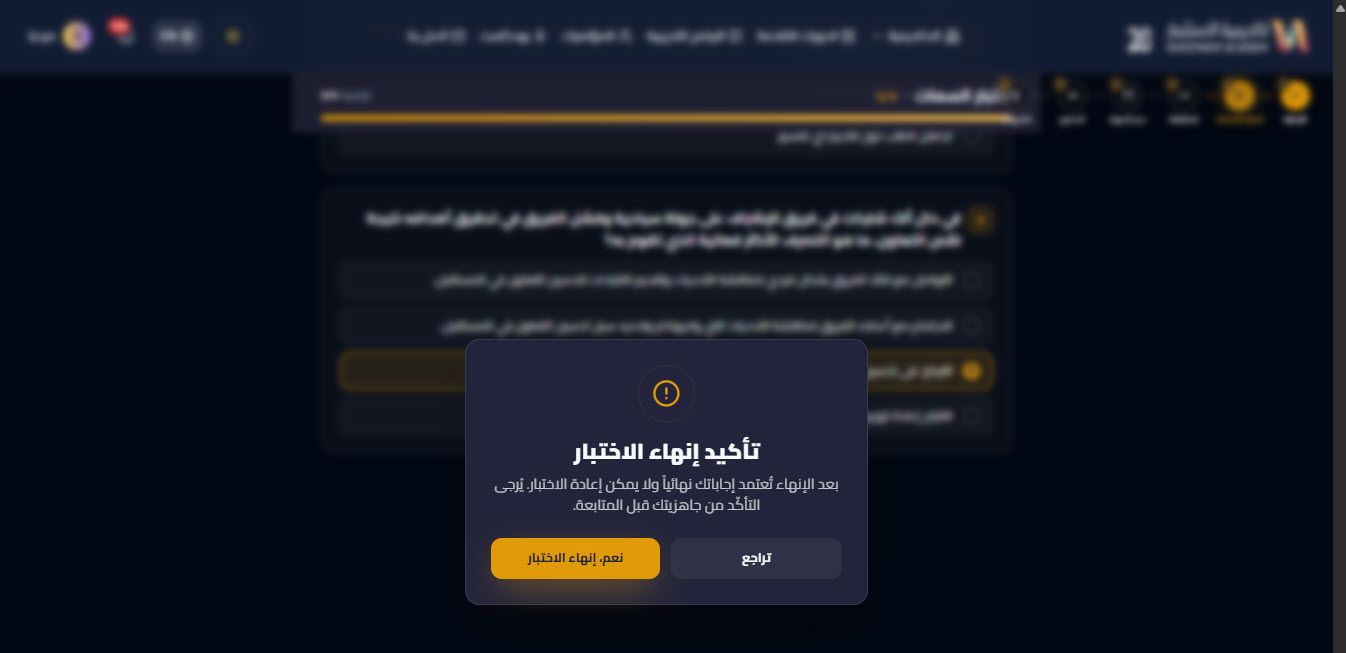
- When finished, confirm via “Yes, finish test”.
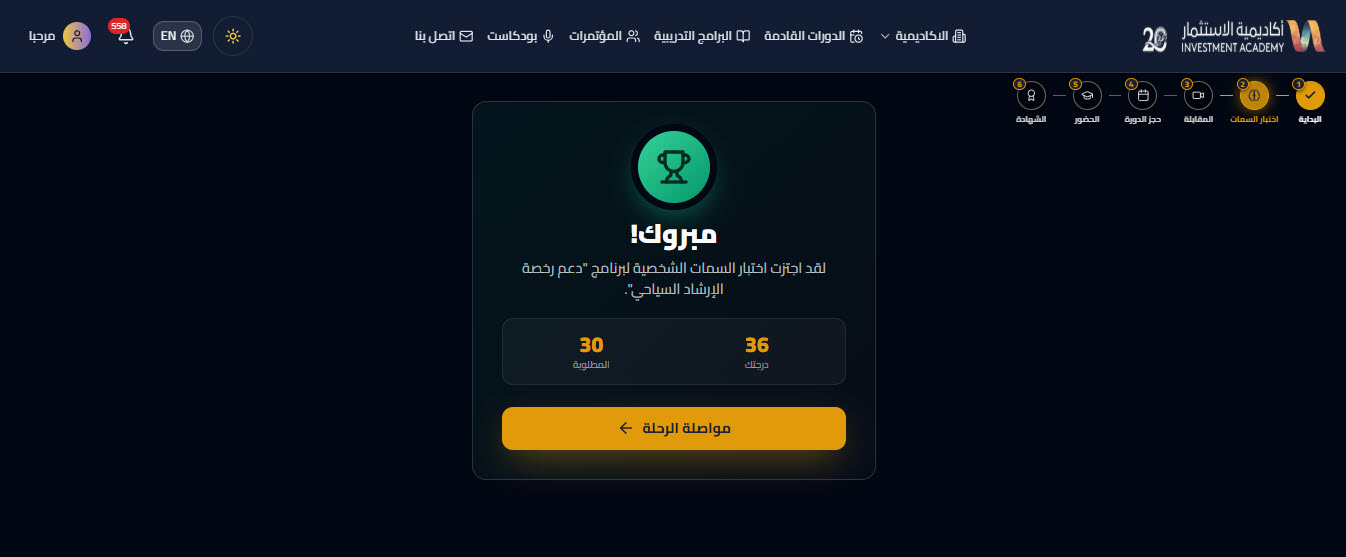
- On passing, a “Congratulations!” message with your score appears — click “Continue journey”.
Note: Answers are saved automatically, the test is taken only once, and it cannot be retaken after finishing — be ready before you start.
6
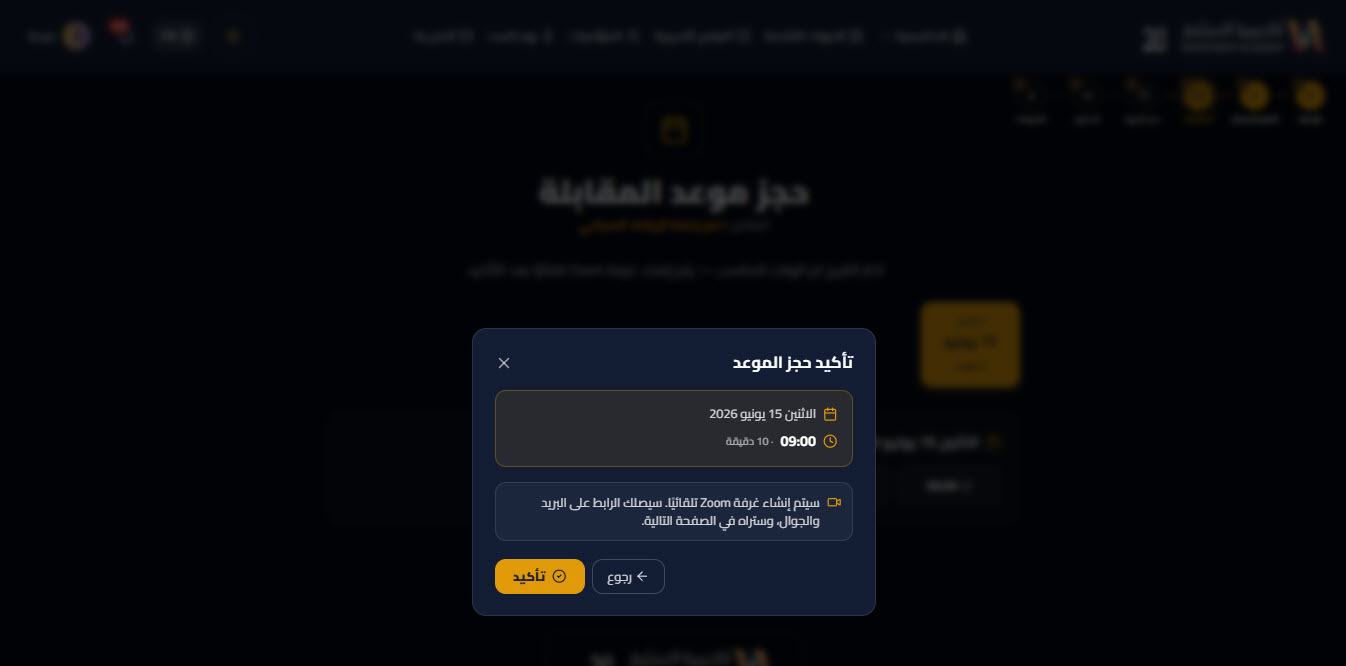
Booking the interview
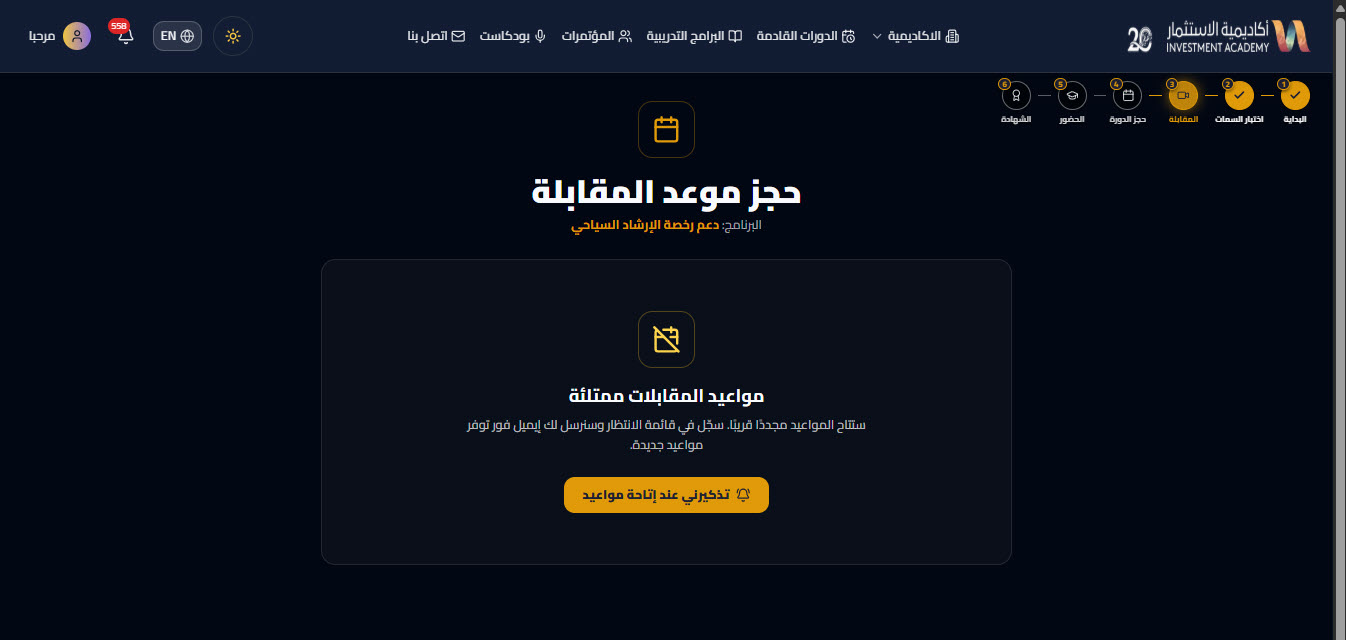
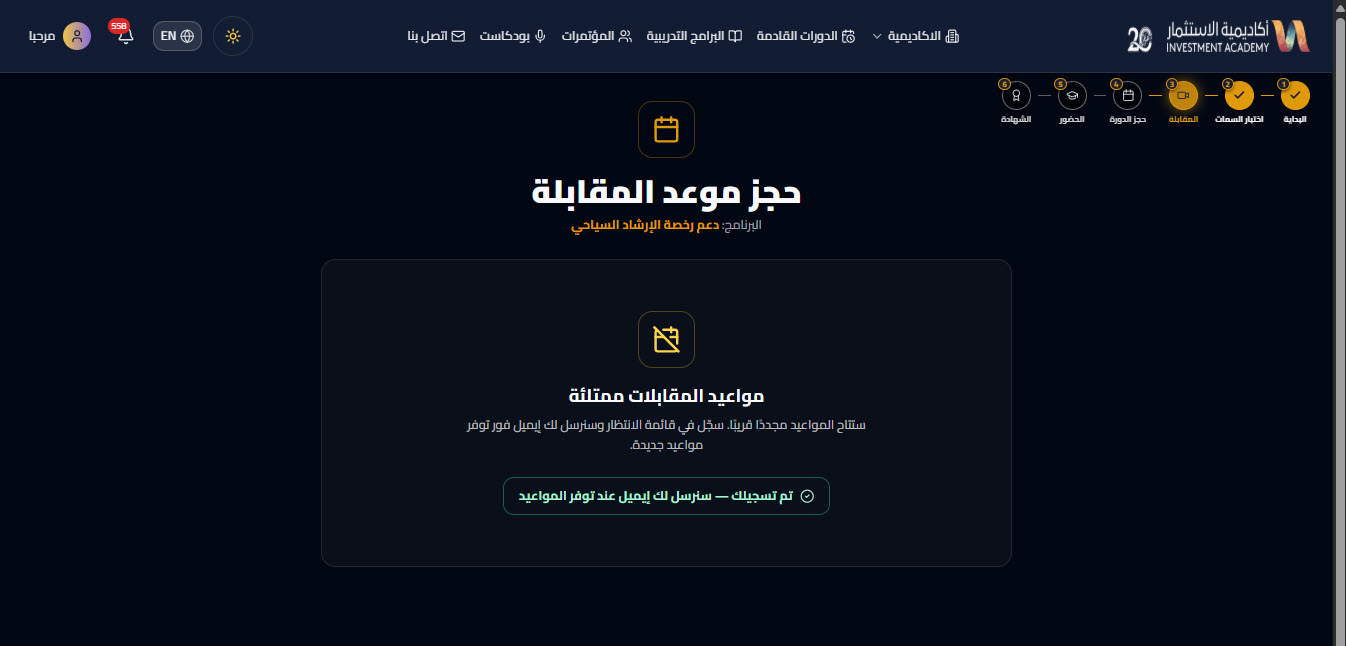
- If slots are full, click “Remind me when slots open” to join the waitlist; you’ll get an email as soon as new slots are available.
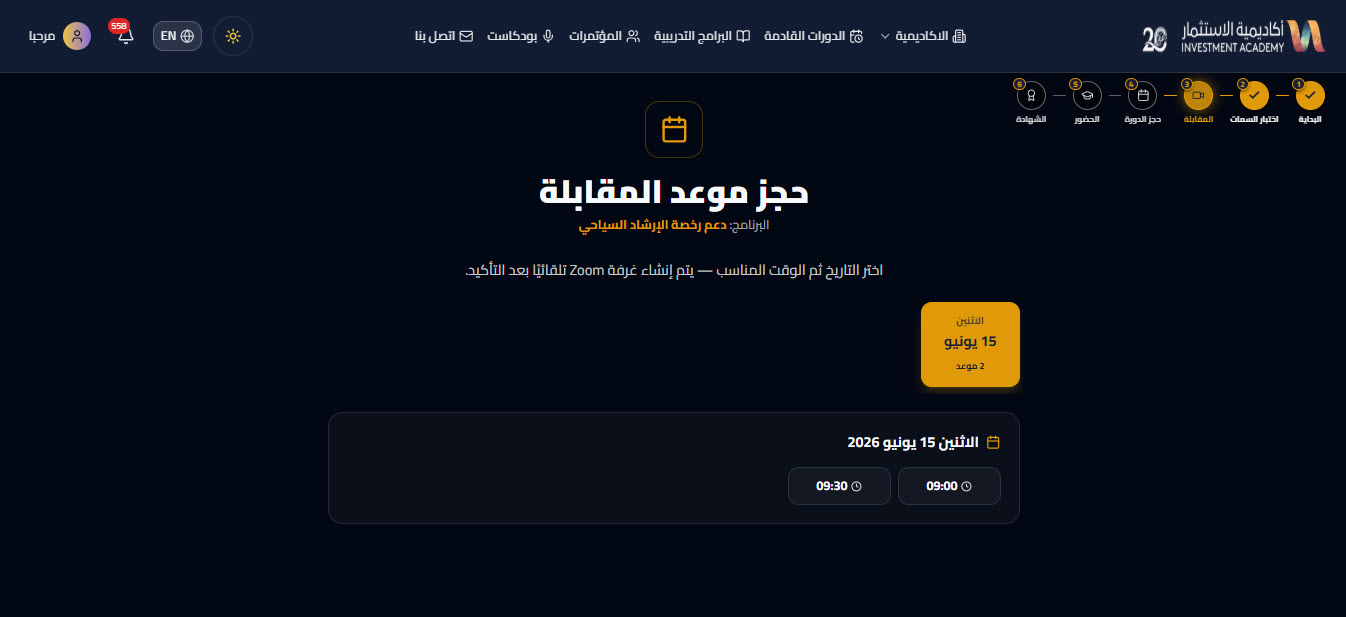
- When slots are available, choose the day, then the available time.
- Review the details and click “Confirm”; a Zoom room is created automatically.
7
Interview details & attendance
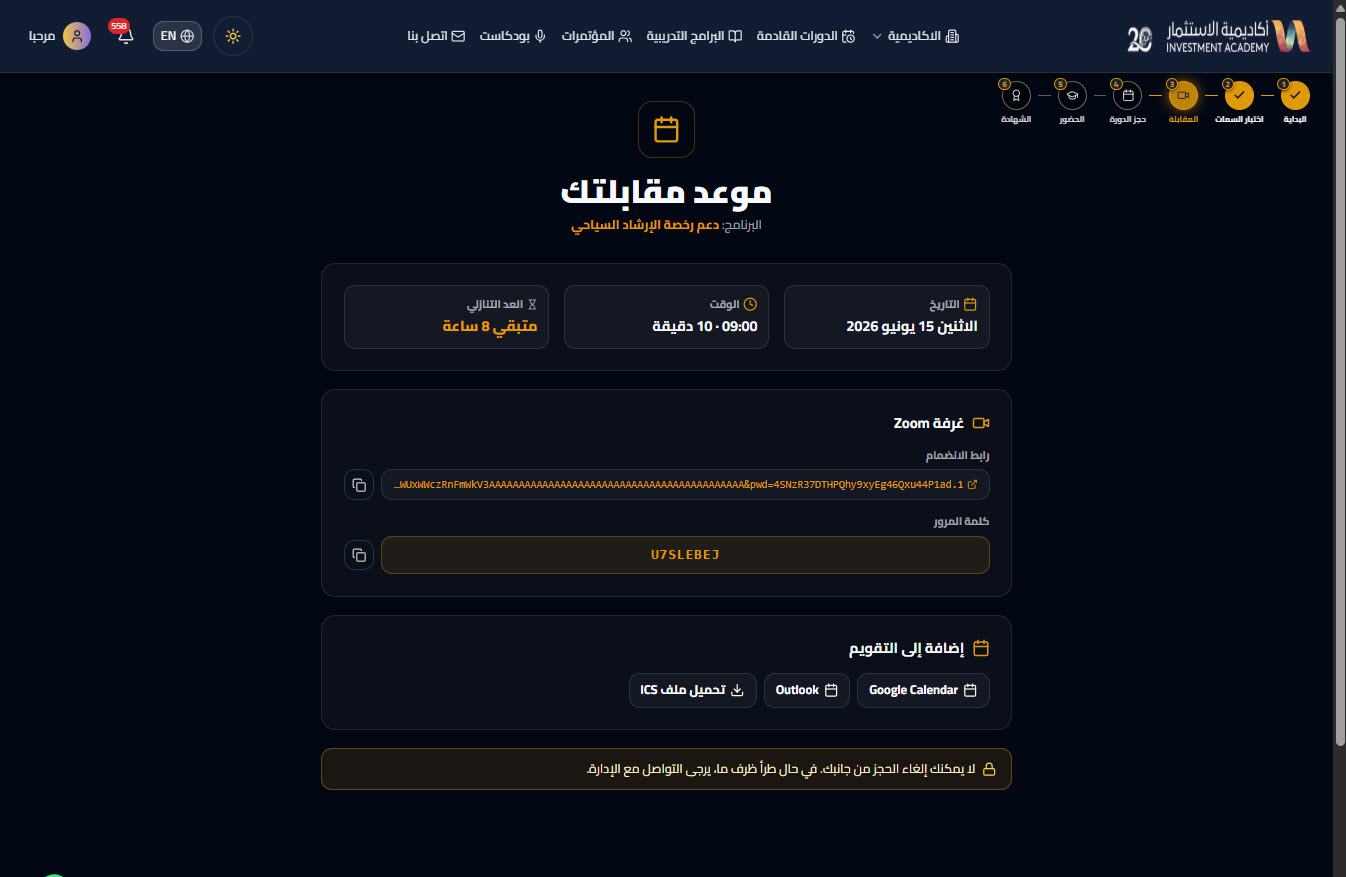
- The “Your interview” page shows the date and time with a countdown.
- Copy the “Zoom room link” and the “password”, and attend at the scheduled time.
- Add the appointment to your calendar via “Download ICS”, Outlook, or Google Calendar so you get a reminder.
Caution: You cannot cancel the booking yourself; if something comes up, please contact administration.
8
Booking the course
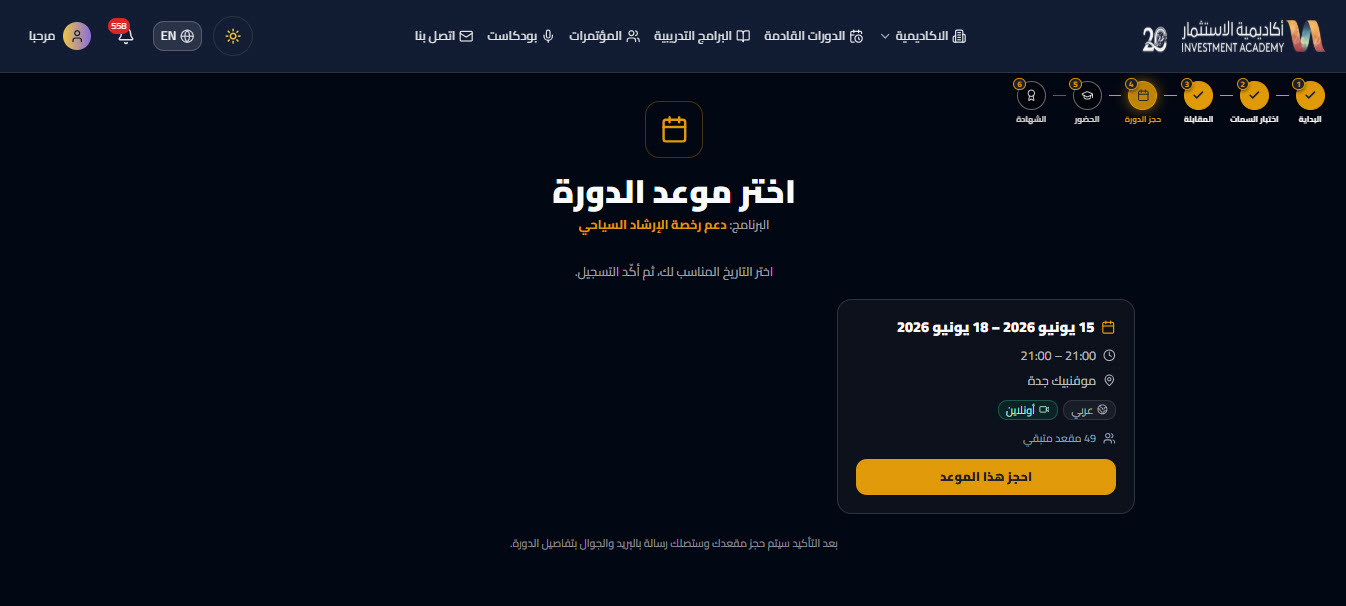
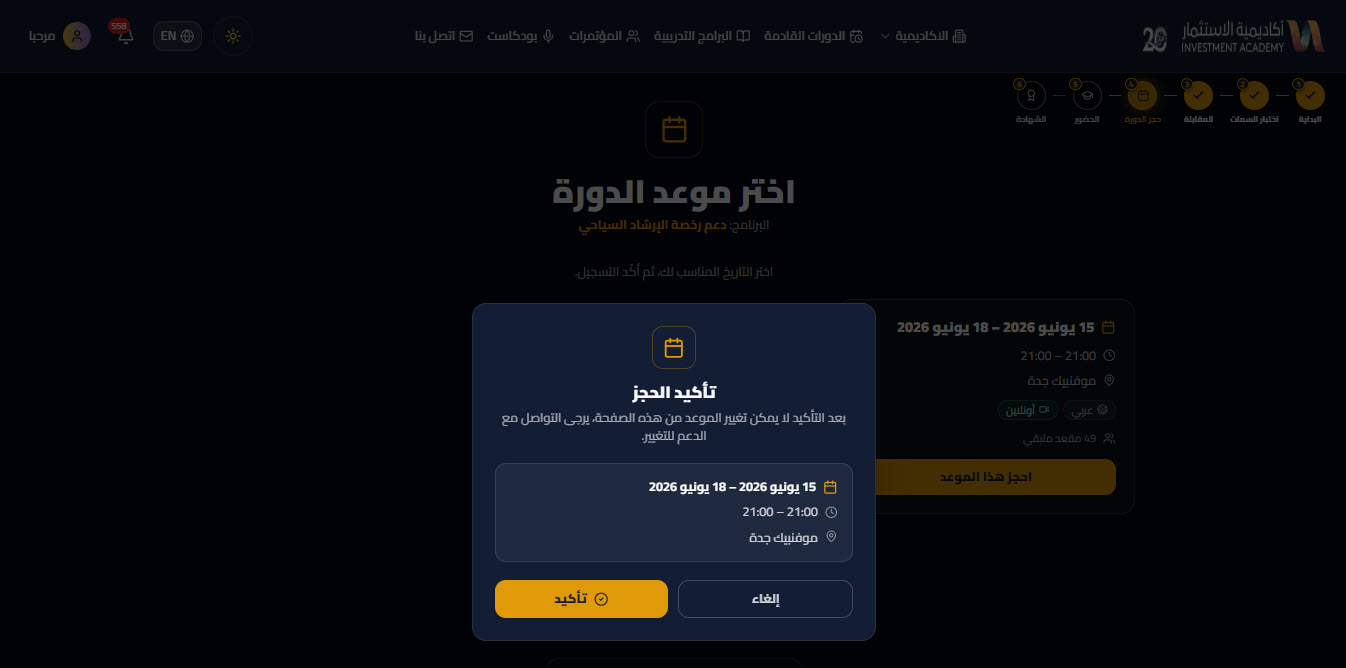
- Choose the course slot that suits you (date, time, venue, attendance type, and remaining seats).
- Click “Book this slot”, then “Confirm”.
- After confirmation you’ll receive the full course details by email and SMS.
Note: After confirmation the slot can’t be changed from the page; for any change please contact support.
9
Registering on “Taqat” (HRDF platform)
- Per the Human Resources Development Fund (“HRDF”) rules, after booking your course slot you must also register for the same course on the “Taqat” platform (taqat.sa) so the support is credited.
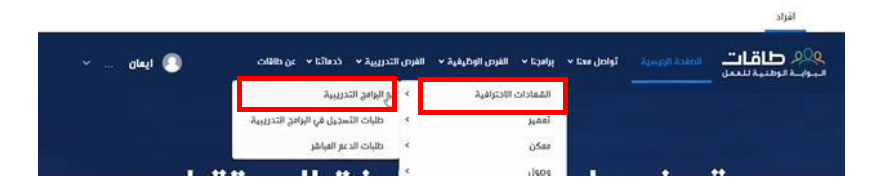
- Sign in to Taqat, then from the top menu choose “Our programs” → “Professional certificates” → “Training programs”.
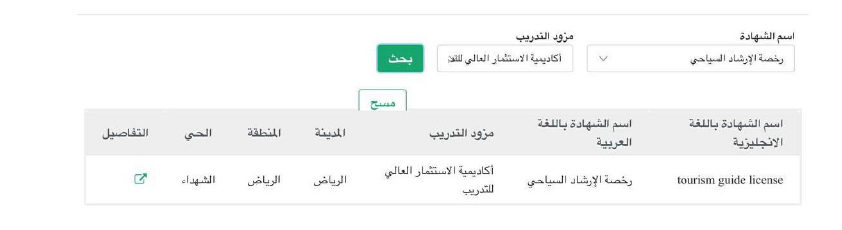
- Search by certificate name “Tourist Guide License” and training provider “Investment Academy for Training”, click “Search”, then click the “Details” button next to the matching program.
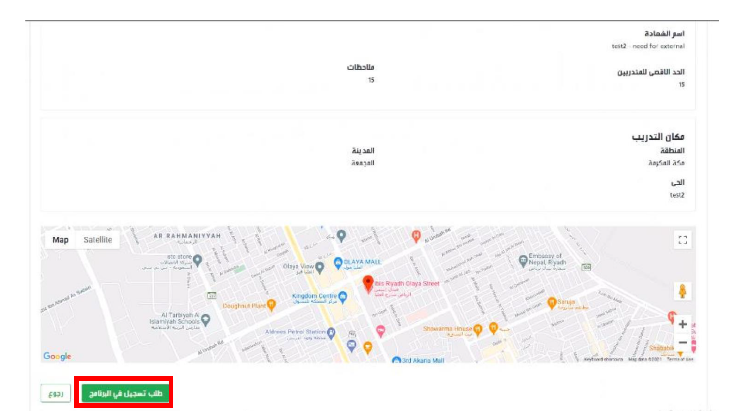
- After the details open, verify the city and program data match, then click “Request registration in the program” to complete your Taqat registration.
Note: Registering on Taqat is a mandatory step for HRDF support. Make sure your data (name and ID) matches your academy registration, and select the same course and provider; not registering on Taqat may prevent support from being credited.
10
Hadaf authorization
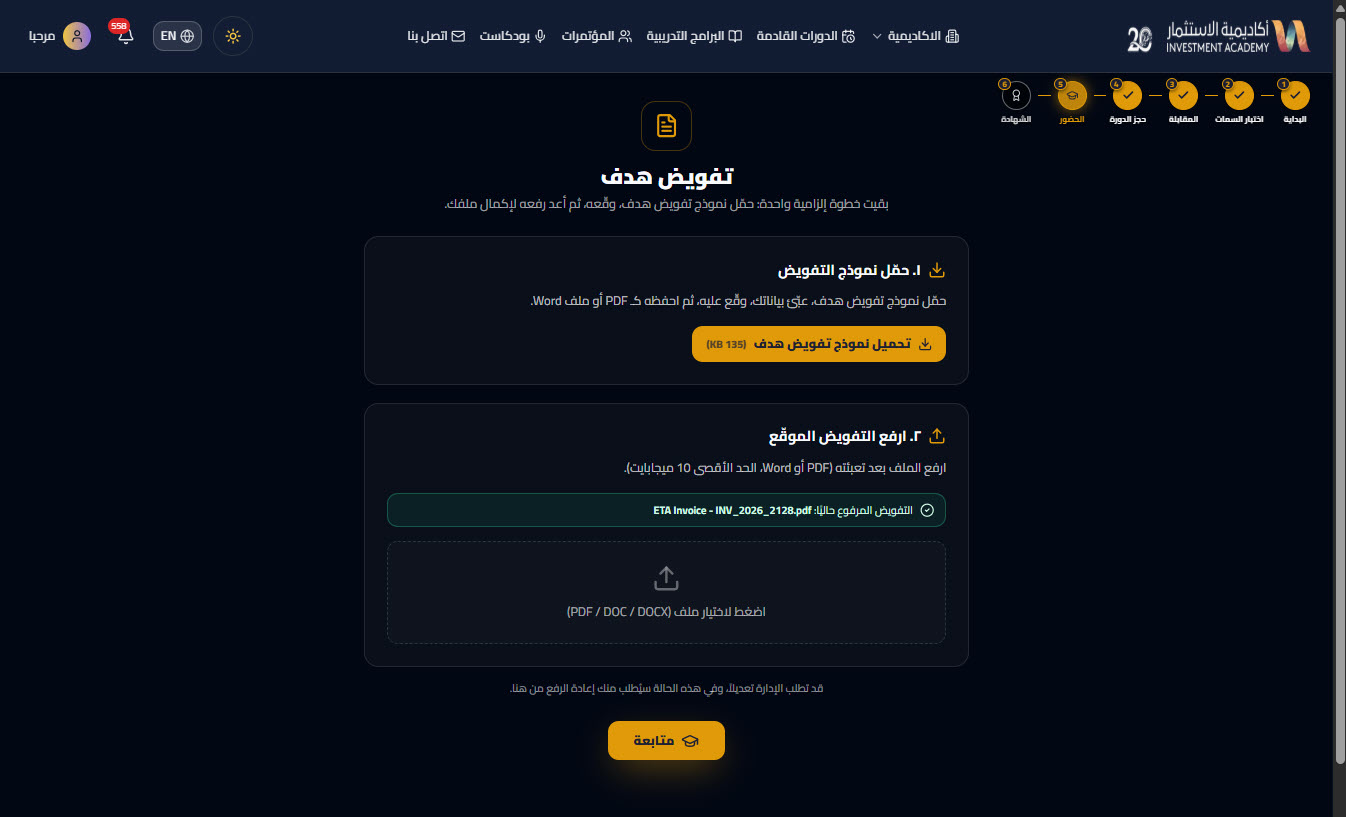
- After confirming the booking, “Registered successfully” appears, followed by the mandatory “Hadaf authorization” step.
- Download the “Hadaf authorization template”, fill and sign it, then upload it (PDF / DOC / DOCX, max 10 MB).
- Click “Continue” to go to your dashboard.
11
Trainee dashboard & following the course
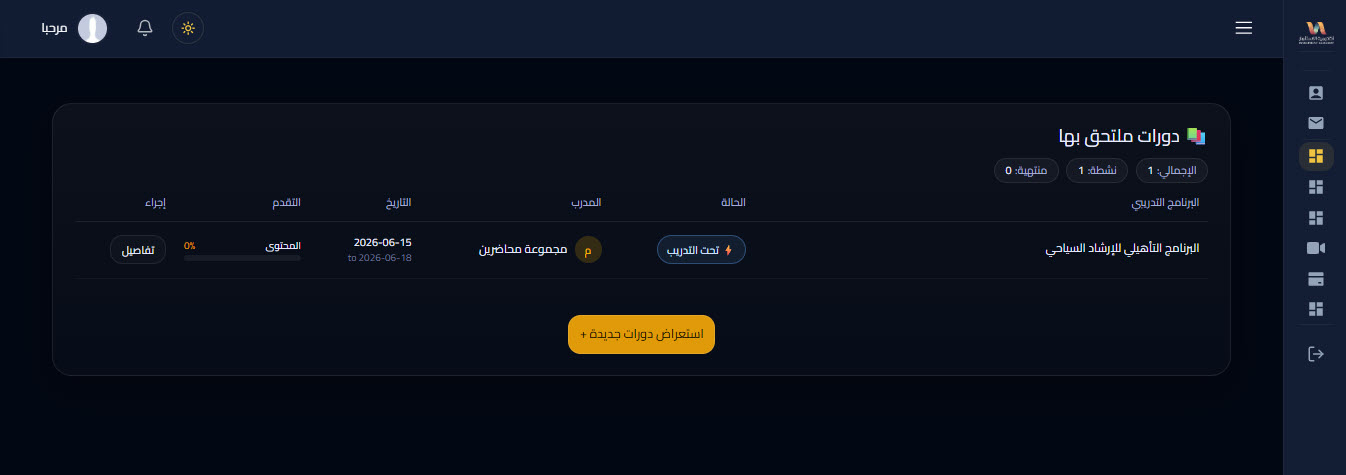
- From your dashboard you’ll find “Enrolled courses”, your program status (Under training), and the progress percentage.
- Click “Details” to follow the content, attendance, and evaluation — all the way to completing the course and obtaining the certificate and license.